NewFor halls
Choose whether hirers can include your hall when asking several halls
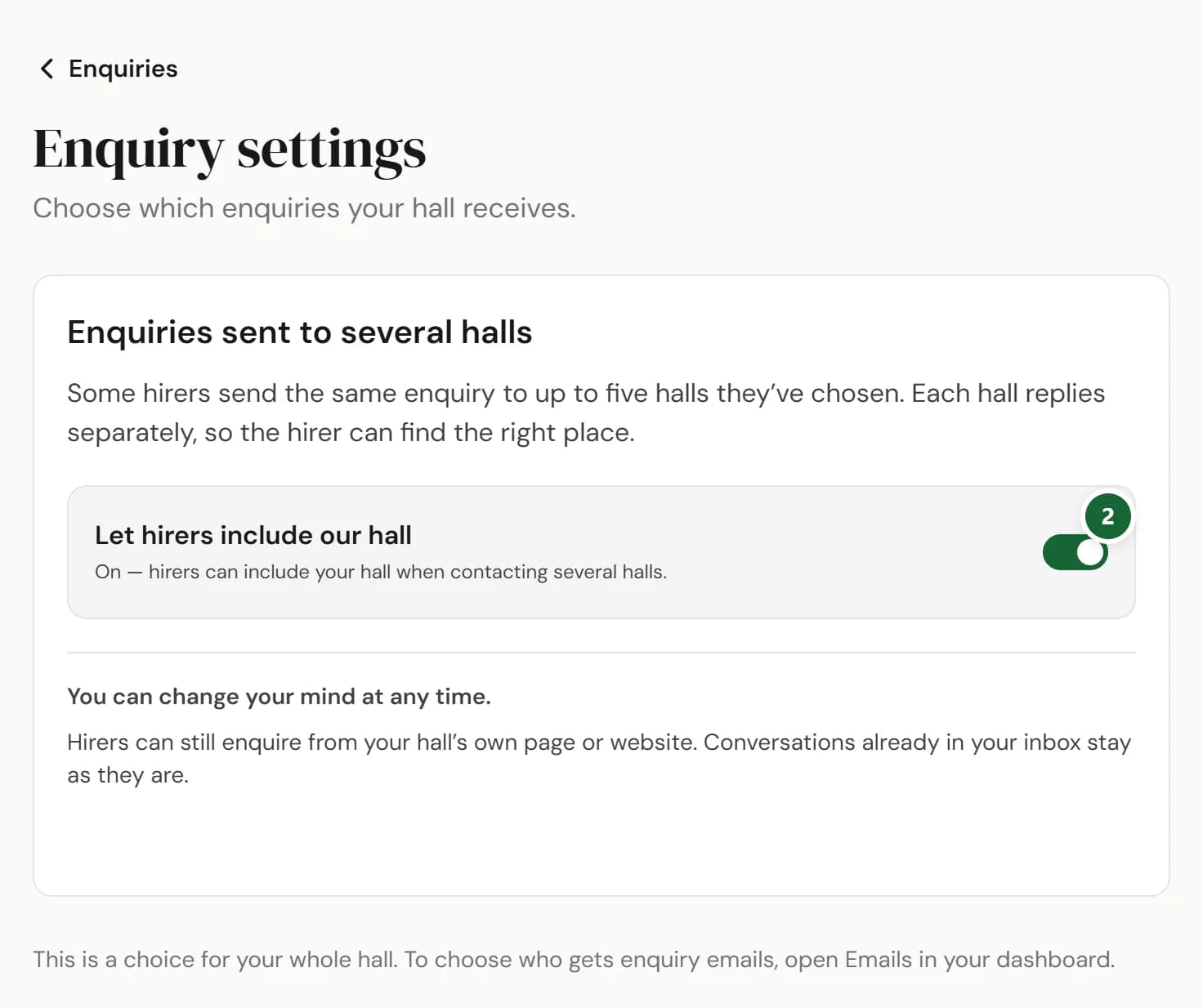
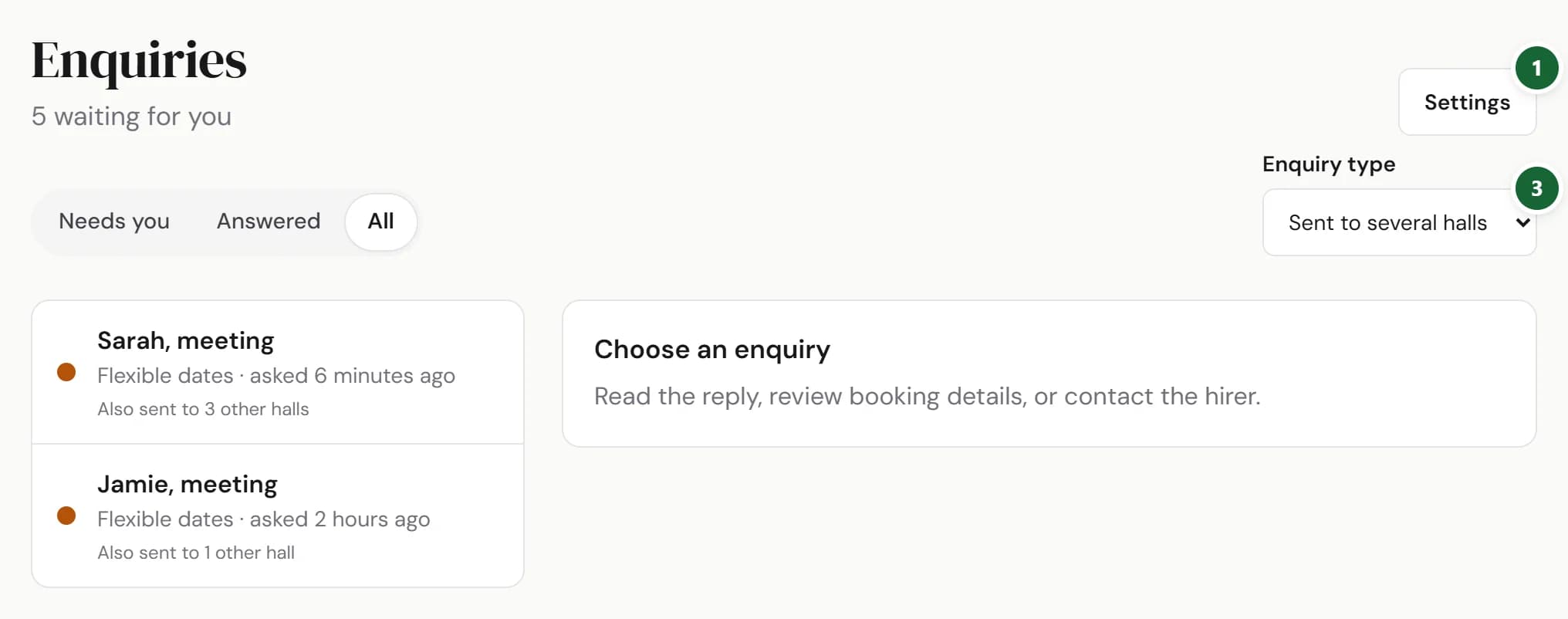
A new enquiry setting gives your hall the choice. Filter your inbox to see enquiries sent only to you or to several halls.
How to use it
- Step 1: Open Enquiries in your dashboard, then Settings.
- Step 2: Switch Let hirers include our hall on or off. Your choice saves straight away for the whole hall. Press Undo to change it back.
- Step 3: Back in Enquiries, use Enquiry type to choose Sent to this hall only or Sent to several halls. You can also choose Needs you, Answered or All.
Good to know
- Only the hall’s owner can change the setting. Other people at your hall can see it and use the filters.
- It starts on, so nothing changes until you choose. Turning it off stops new enquiries through the form for contacting several halls.
- Hirers can still contact your hall directly or through your website. Conversations already in your inbox stay there.
- An enquiry shows how many other halls it was sent to. Your reply goes to the hirer; other halls cannot see it.
Where to find itEnquiries, then Settings
Show me Not on HallMatch yet? What HallMatch does for halls →