Skip to content
HallMatch

What's new

What we've changed on HallMatch

Every change we make for halls and the people who hire them, newest first. Each one shows you the screen and says how to use it.

Last change 8 October 2026 · 38 changes so far

October 2026

New this month: a website for your hall, built from the listing you already keep up to date.

The one that matters most

NewFor halls

A website for your hall, made from your HallMatch listing

Your rooms, prices, photos and free dates, already on your hall’s own website. Look round an example, then ask for a free preview.

Larkcombe Village Hall's example website: a bar across the top says it is an example and Larkcombe is made up, with Get one for your hall, then the hall's own menu, photo and welcome.
Larkcombe is an example hall. Yours would be built from your listing.

How to use it

  1. Step 1: Open Websites for halls and choose Visit the website to look round an example.
  2. Step 2: Under Try it, enter Your hall’s name and choose a Main colour.
  3. Step 3: Ask for a free preview. If you already manage your hall, press Build my preview on Home.

Good to know

  • The preview is free. A published website costs £120 a year.
  • Your listing, enquiries and diary stay free.
  • Nothing goes public until you press Publish.
  • We never touch your email. The example halls are made up, so a pretend enquiry reaches nobody.
Where to find itFor halls, then Websites for halls
Go to Websites for halls

Everything else in October · 1

ImprovedMake your website look like your own hall, with more colours, lettering and touchesWebsite, then Look, now offers your logo alone in the header, a photo strip, twelve colours, button colours, Classic lettering and more.

How to use it

  1. Step 1: Under Main photo, choose what goes At the top of the home page: Big photo, Photo strip or No photo.
  2. Step 2: Under Colours, pick a Main colour and a Button colour. If the two sit too close, the page suggests one that stands out.
  3. Step 3: Under Finishing touches, choose Bunting, A simple line or Nothing, the background of every other section, and pinned or tidy cards.
  4. Step 4: Watch the Live preview as you choose. Each choice saves to your draft; press Publish on your website's Overview when you're happy.

Good to know

  • Nothing changes on your website until you publish. If you choose nothing, it looks just as it does now.
  • Every colour and button colour is picked to stay easy to read, on a computer and on a phone.
  • Logo with your hall's name already in it? Under Logo, choose Logo only so the name isn't shown twice.
  • See the new choices on the example halls: St Brannoc's has Classic lettering and a simple line, Thistleby a photo strip and tidy cards.
Website, then Look: the Logo and Main photo groups, with Photo strip (marked 1) under At the top of the home page, beside the Live preview of the hall's home page on a computer and a phone (marked 4).
Where to find itWebsite, then Look
Show me
This change on its own page →

September 2026

September was about answering hirers faster, and keeping a hall's diary honest.

The three that matter most

NewFor halls

Put your hall's calendar on your own website

Paste one line into your hall's website and visitors see when you're free, then ask for a slot.
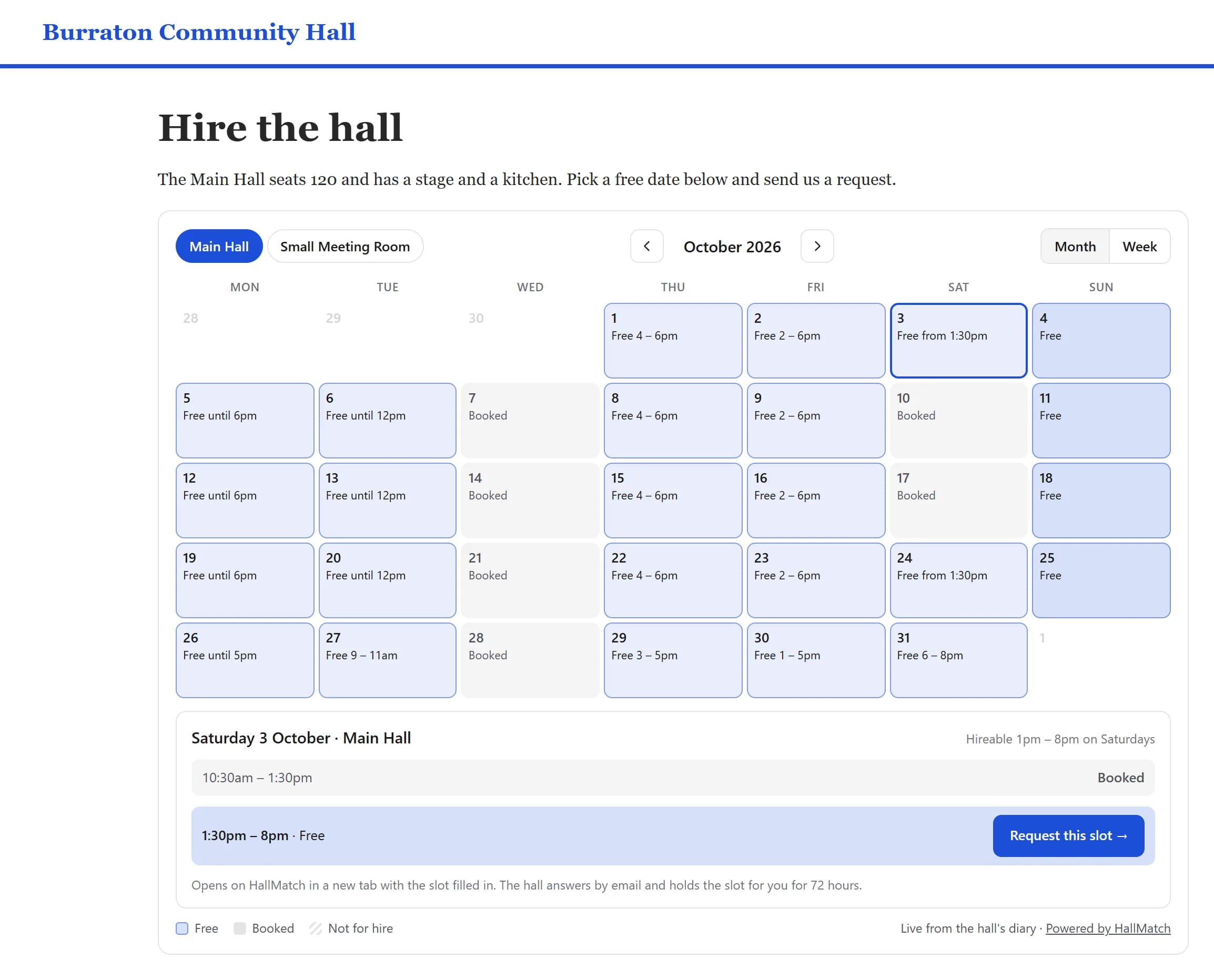
A hall's own website with the HallMatch calendar on it: October in the Main Hall, each day marked free, part free with the free hours, or booked, and Saturday 3 October opened to show a free slot from 1:30pm with a Request this slot button.
What visitors to your website see.

How to use it

  1. Step 1: Press Copy beside the box headed Paste this where you want the calendar.
  2. Step 2: Paste it into your website, on the page where you want the calendar. On Wix, or any site that won't take scripts, press Your site can't run scripts? Use the iframe version first.
  3. Step 3: Choose a Button colour to match your site. How it looks on your site shows the result as you go.

Good to know

  • Visitors see free and busy only, room by room. Never who has booked or what for.
  • Their request comes to you like any other enquiry, and the slot is held for them while you answer.
  • It says Live on your site once the calendar has loaded on your website.
Where to find itDiary, then Settings, then Your website
Show me
ImprovedFor halls

A simpler dashboard, built around what a hall actually does

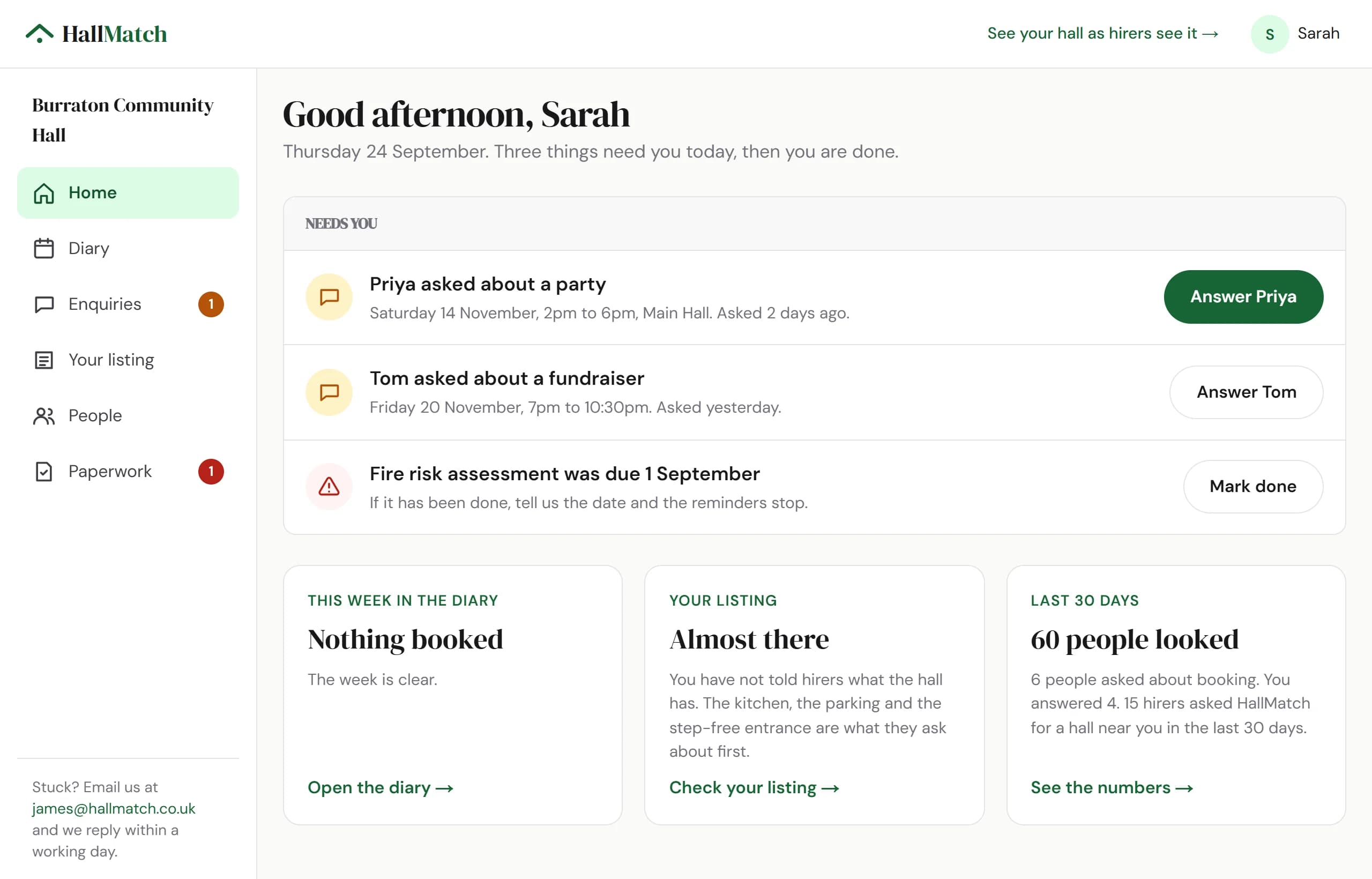
Six plain sections, and a Home page that tells you first whether anything needs you.

Home for Burraton Community Hall: Good afternoon, Sarah. Three things need you today. Priya asked about a party (Answer Priya), Tom asked about a fundraiser (Answer Tom), and the fire risk assessment was due 1 September (Mark done).
Home answers one question: does anything need you?

How to use it

  1. Step 1: Sign in. Home opens on Needs you: hirers waiting for an answer, oldest first, and anything overdue.
  2. Step 2: Press the green button on the first one. When Needs you is empty, you're done.

Good to know

  • Thirteen tabs are now six sections: Home, Diary, Enquiries, Your listing, People and Paperwork.
  • On a phone they sit along the bottom, with the rest under More, and every page fits the screen.
Where to find itHome
Show me
NewFor halls

Answer a hirer in one tap from the enquiry email

Every enquiry email has three answers to press. Pick one, check it, send. No password.

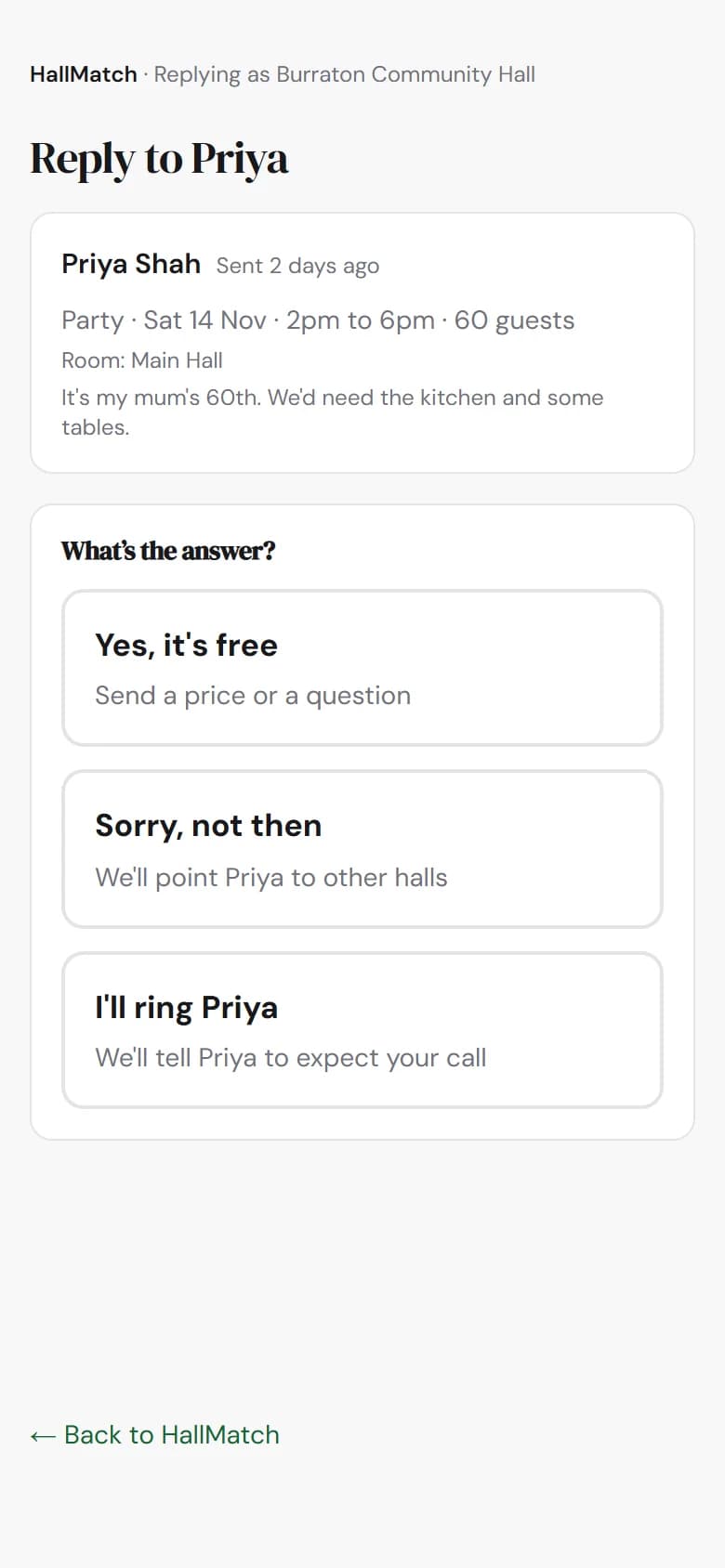
On a phone, Reply to Priya: a party on Saturday 14 November, 2pm to 6pm, 60 guests, and three answers: Yes, it's free, Sorry, not then, I'll ring Priya.
Most halls answer on a phone.
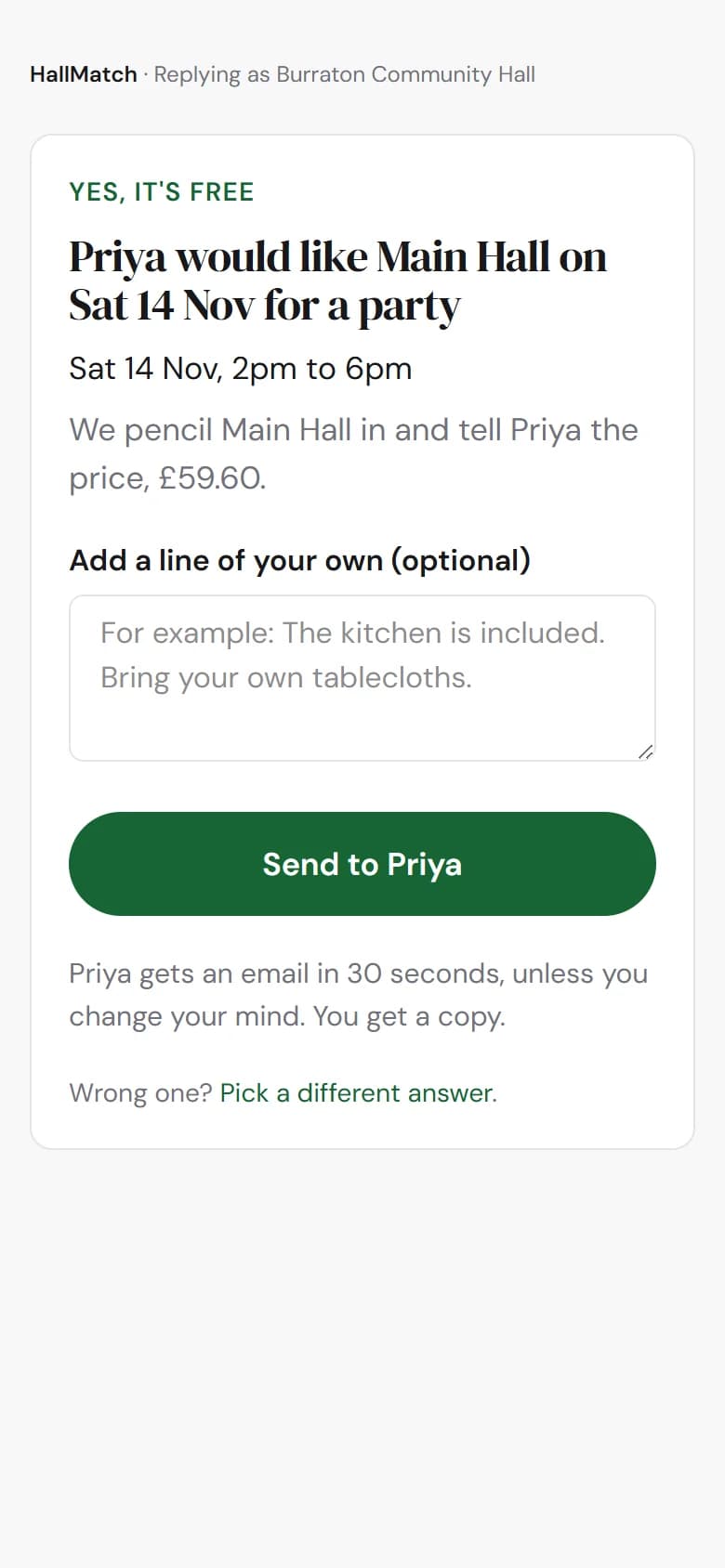
On a phone, the Yes, it's free page: We pencil Main Hall in and tell Priya the price, £59.60, and a Send to Priya button.
Then one press to send.

How to use it

  1. Step 1: In the enquiry email, press Yes, it's free, Sorry, not then or I'll ring the hirer.
  2. Step 2: The page that opens says what will happen. Add a line of your own if you like.
  3. Step 3: Press Send to the hirer.

Good to know

  • You don't need to sign in, and you have thirty seconds to change your mind.
  • If the hirer writes back, it comes straight to your inbox. Replying to the email as before still works too.

Everything else in September · 33

NewBook, move and stretch bookings by dragging them in your diaryDrag across empty time to book it, drag a booking to move it, and drag its bottom edge to change when it ends.

How to use it

  1. Step 1: Open Diary. In Week or Day, drag across empty time in a room and fill in who it's for.
  2. Step 2: Drag a booking to another time or room to move it, or drag its bottom edge to change when it ends.
  3. Step 3: A bar at the foot of the screen says what changed. Press Undo within 20 seconds to put it back, or the button with the hirer's name to email them.
  4. Step 4: On a phone, tap a free row to book that gap, and swipe a booking for Call or Paid.

Good to know

  • Moving a booking never emails the hirer by itself. You choose whether to tell them.
  • Rather not drag? Right-click a booking, or press and hold on a phone, for Move to… and the rest.
  • Drag a hirer's request to another time to offer them that time instead.
  • Find, at the top, answers a date with each room's free times, or finds a hirer by name or phone number. Type unpaid for bookings not yet paid.
The Diary's week of 5 to 11 October, with the Main Hall and Small Meeting Room side by side each day, bookings named by hirer, and Week (marked 1) chosen beside Day and Month.
Where to find itDiary
Show me
This change on its own page →
NewConfirm a held date, give the hirer longer, or let it goA date pencilled in for a hirer now has its own buttons: Confirm booking, Extend and Let it go.

How to use it

  1. Step 1: Open Diary and click the held booking. The top says Held until and the day.
  2. Step 2: Press Confirm booking when the hirer says yes, Extend to give them longer, or Let it go to free the date.

Good to know

  • A hold goes in when you say Yes, it's free to an enquiry, or when you press Hold on a new booking.
  • Right-click a hold, or press and hold on a phone, to confirm or extend it without opening it.
  • Once it's booked, Mark paid sits beside the price.
A held booking opened beside the diary: Held until Sunday (marked 1), Nadia Brooks, party on Saturday 10 October, 2 to 6pm, in the Small Meeting Room, with Confirm booking (marked 2), Extend and Let it go.
Where to find itDiary
Show me
This change on its own page →
NewClose the hall for a day or more, and sort out what's bookedClose the hall for repairs, an election or a holiday, and deal with anything already booked on those days.

How to use it

  1. Step 1: Open Diary, press ⋯ at the top and choose Close the hall…
  2. Step 2: Choose From and Until, and say Why. Every room closes all day unless you press Change rooms or times.
  3. Step 3: If anything is booked then, press Sort it out and choose for each one, such as Move it, Cancel & email or Keep and close around it.
  4. Step 4: Press Close for and the number of days.

Good to know

  • If hirers can see your diary, those days show as busy, on your listing and on your website's calendar. Your reason stays private.
  • Emails to hirers wait 30 seconds, so you can still change your mind.
  • Opening again early? Right-click the closed days and press Reopen.
The Close the hall dialog: From Mon 5 Oct (marked 2), Until, Why, All day, every room, two bookings in the way with Sort it out, and Close for 1 day (marked 4).
Where to find itDiary
Show me
This change on its own page →
ImprovedNumbers has its own place in the menu, from looking to bookingNumbers is in the menu on a computer too, and shows how many hirers looked, asked, got an answer and booked.

How to use it

  1. Step 1: Open Numbers. Hirers shows Looked, Asked to book, You answered and Booked.
  2. Step 2: Choose 30 days, 3 months or 12 months. Every figure on the page changes with it.
  3. Step 3: Under Week by week, point at a bar, or tap it on a phone, to see that week's visits and enquiries.
  4. Step 4: How full are we? has moved here too, under Hirers.

Good to know

  • Looked counts each time your listing was opened, not different people.
  • Booked counts once it's confirmed in your diary or the hirer tells us.
Numbers for the last 30 days: Looked 62 times (marked 1), 8 asked to book, 5 of 8 answered with Answer them, and 1 booked so far.
Where to find itNumbers, then Hirers
Show me
This change on its own page →
ImprovedYour newest enquiries now come firstHirers waiting on you are listed newest first, so you see the hirer who asked today first.

How to use it

  1. Step 1: Open Enquiries. Needs you lists the hirers waiting on you, newest first.
  2. Step 2: Press Start with the newest and answer them one at a time.

Good to know

  • Home's Needs you uses the same order.
  • Older enquiries are still there, further down the list.
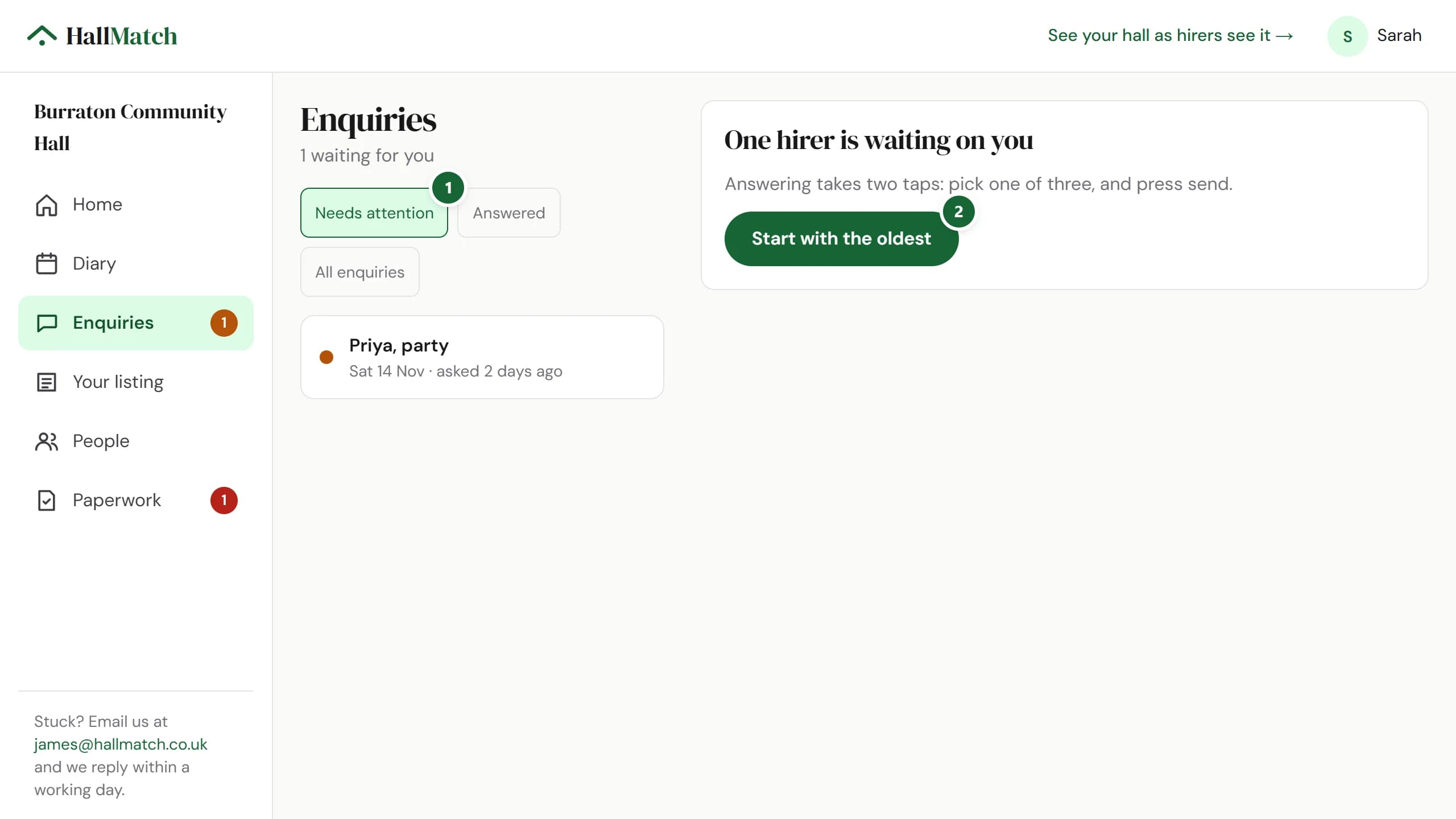
Enquiries: 2 waiting for you. Needs you (marked 1) lists Tom, fundraiser, asked yesterday, above Priya, party, asked 2 days ago, and a Start with the newest button (marked 2).
Where to find itEnquiries
Show me
This change on its own page →
ImprovedDiary settings save as you change themEach card in Diary settings saves itself, with an Undo beside it. There are no Save buttons to forget.

How to use it

  1. Step 1: Open Diary, then Settings, and change what you need.
  2. Step 2: The card says Saving…, then Saved. Press Undo beside it to put it back.

Good to know

  • Each card saves on its own, so a change in one never waits on another.
The What hirers can see card in Diary settings just after a change, with Saved and Undo (marked 2) in its title row.
Where to find itDiary, then Settings
Show me
This change on its own page →
NewSay yes to a hirer and the date goes into your diaryAnswer yes to an enquiry with a date and we hold that slot in your diary for you.

How to use it

  1. Step 1: In the enquiry email, or on the page it opens, press Yes, it's free.
  2. Step 2: Add a line of your own if you like, and press Send to the hirer.

Good to know

  • The slot shows in your diary as a hold, so nobody else is offered it. The hirer is told you're holding it, not that it's booked.
  • A hold lasts three days unless you've set a different length in your diary settings.
  • No HallMatch diary yet? This starts one with just that hold in it, shown to nobody unless you choose.
  • You have thirty seconds to change your mind before the email goes, and Undo afterwards takes the hold away.
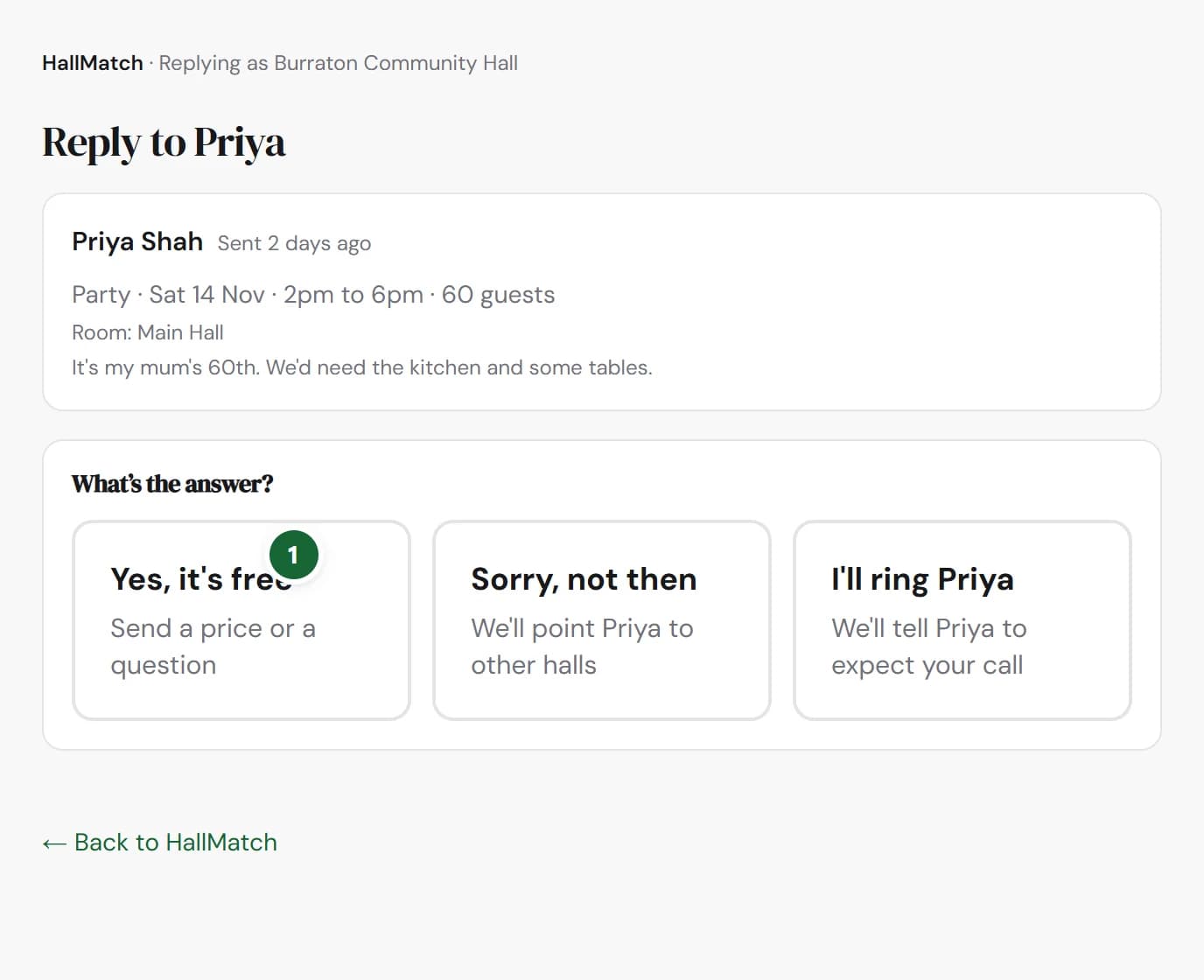
The reply page for Priya's enquiry about a party on Saturday 14 November, with three answers: Yes, it's free (marked 1), Sorry, not then and I'll ring Priya.
This change on its own page →
NewTake over your hall's listing in one tap, after answering a hirerAfter answering an enquiry, press Send me the link, open the email, and the hall's dashboard is yours.

How to use it

  1. Step 1: Answer the enquiry on the reply page as usual.
  2. Step 2: Under Keep getting hirers for your hall, press Send me the link.
  3. Step 3: Open the email we send to the hall's address, and press its link. The dashboard for your hall opens, and it's yours.

Good to know

  • Only for halls nobody at the hall has taken over yet. We built those listings from what's public.
  • The link only ever goes to the address the enquiry was sent to, and it can't be changed on the page, so only someone who reads the hall's email can use it.
  • Nothing to fill in, no wait while we check, and nothing changes until you open the email.
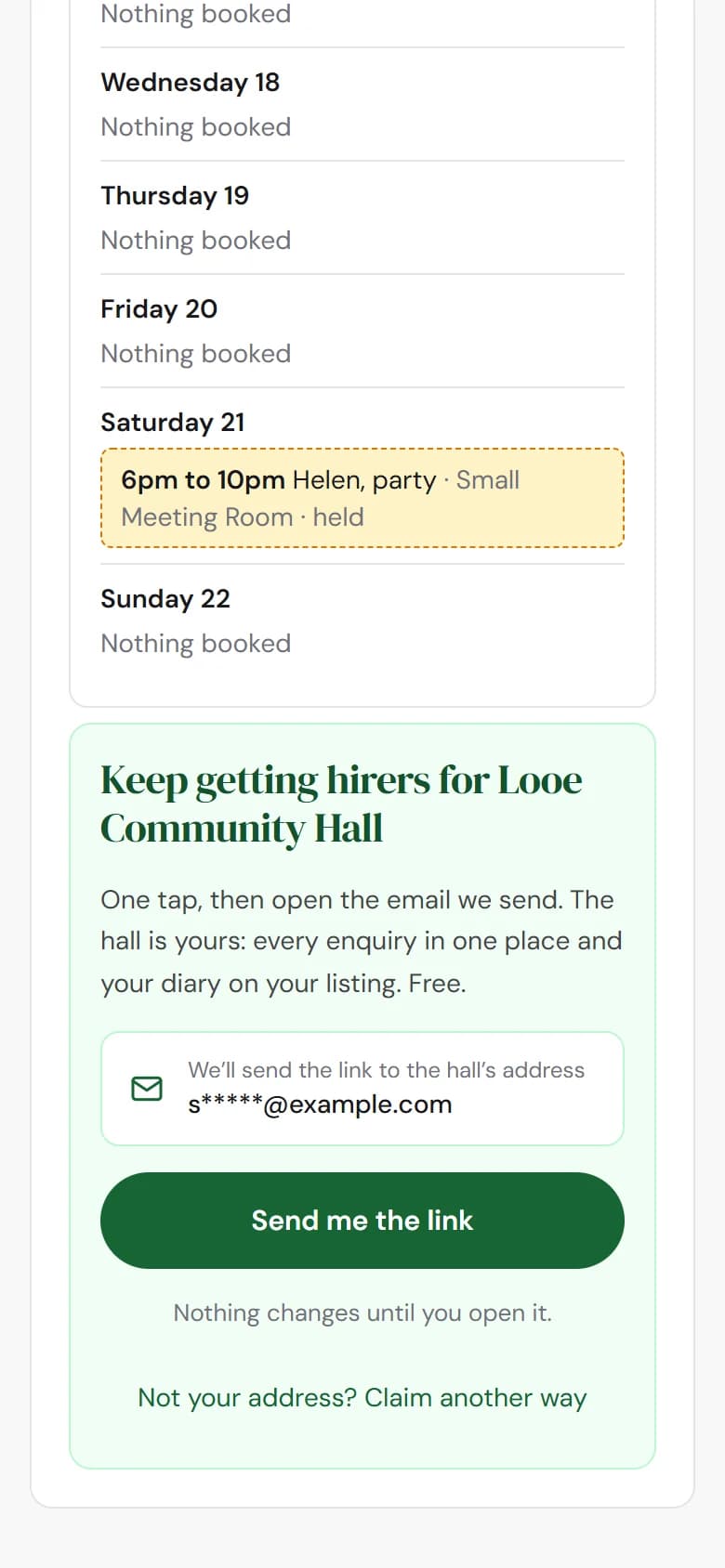
On a phone, just after answering Helen's enquiry on the reply page: a green panel headed Keep getting hirers for Looe Community Hall, the hall's address shown masked, a Send me the link button, and Nothing changes until you open it.
This change on its own page →
NewRegular hirers can skip the school holidays and bank holidaysMark a regular as Term time only and their sessions stop appearing in the school holidays.

How to use it

  1. Step 1: Open the regular hirer (or press + Regular hirer) and under Which weeks choose Term time only.
  2. Step 2: Leave Not on bank holidays ticked if they don't meet on bank holidays. It starts ticked.
  3. Step 3: Tell the diary when your school holidays are, in School holidays beside the list: press + Add a holiday, or, for a hall in the London Borough of Hounslow, Use your council's dates.

Good to know

  • Until the school holidays are in, Term time only runs every week, and the form says so.
  • Hounslow's dates are the only council's so far. Tell us yours and we'll add it.
  • The diary now looks eighteen months ahead. Further out, hirers see Too far ahead to show rather than a date that only looks free.
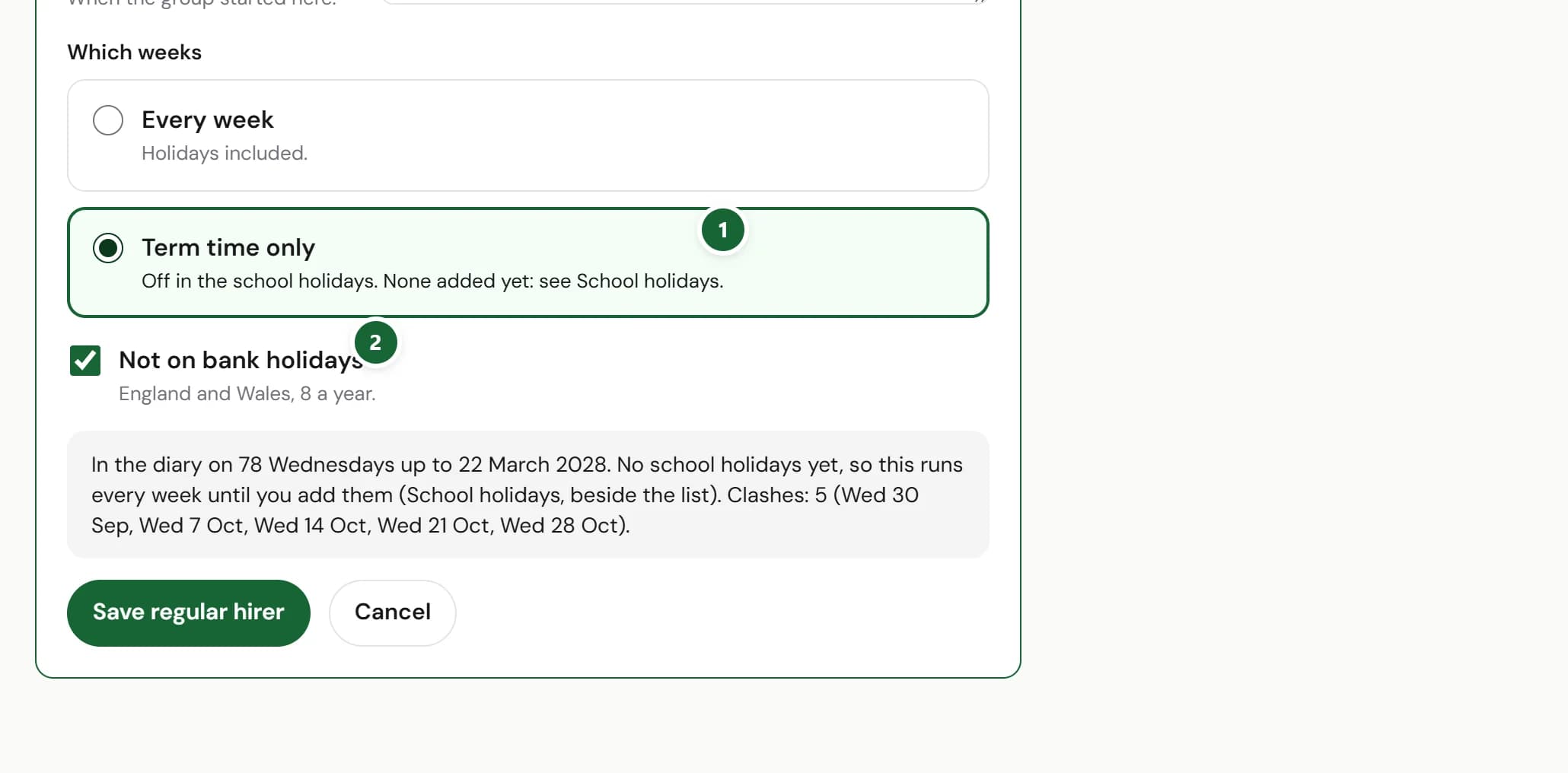
Adding a regular hirer: under Which weeks, Term time only is chosen (marked 1) and Not on bank holidays is ticked (marked 2), with a line saying the group is in the diary on 78 Wednesdays up to 22 March 2028 and clashes with 5 existing bookings.
Where to find itDiary, then Regular hirers
Show me
This change on its own page →
FixedRegular hirers now show which nights didn't fit, and what's in the wayIf a regular's slot clashes with another booking, that regular now says how many nights are missing and why.

What was wrong

When a regular's weekly slot overlapped a booking already in the room, those nights were left out of the diary. We said so once, straight after you saved, with a count for the whole hall rather than that hirer, and then the message went.

What's different now

The form lists the clashing dates before you save, and each regular on Regular hirers shows how many of its nights are missing and what is in the way until you sort it out. Undo on a week you'd moved, then given back, now puts back the moved night.

If this affected you

Open Diary, then Regular hirers, and look for a regular with nights missing. Move one of the two bookings or change a time.

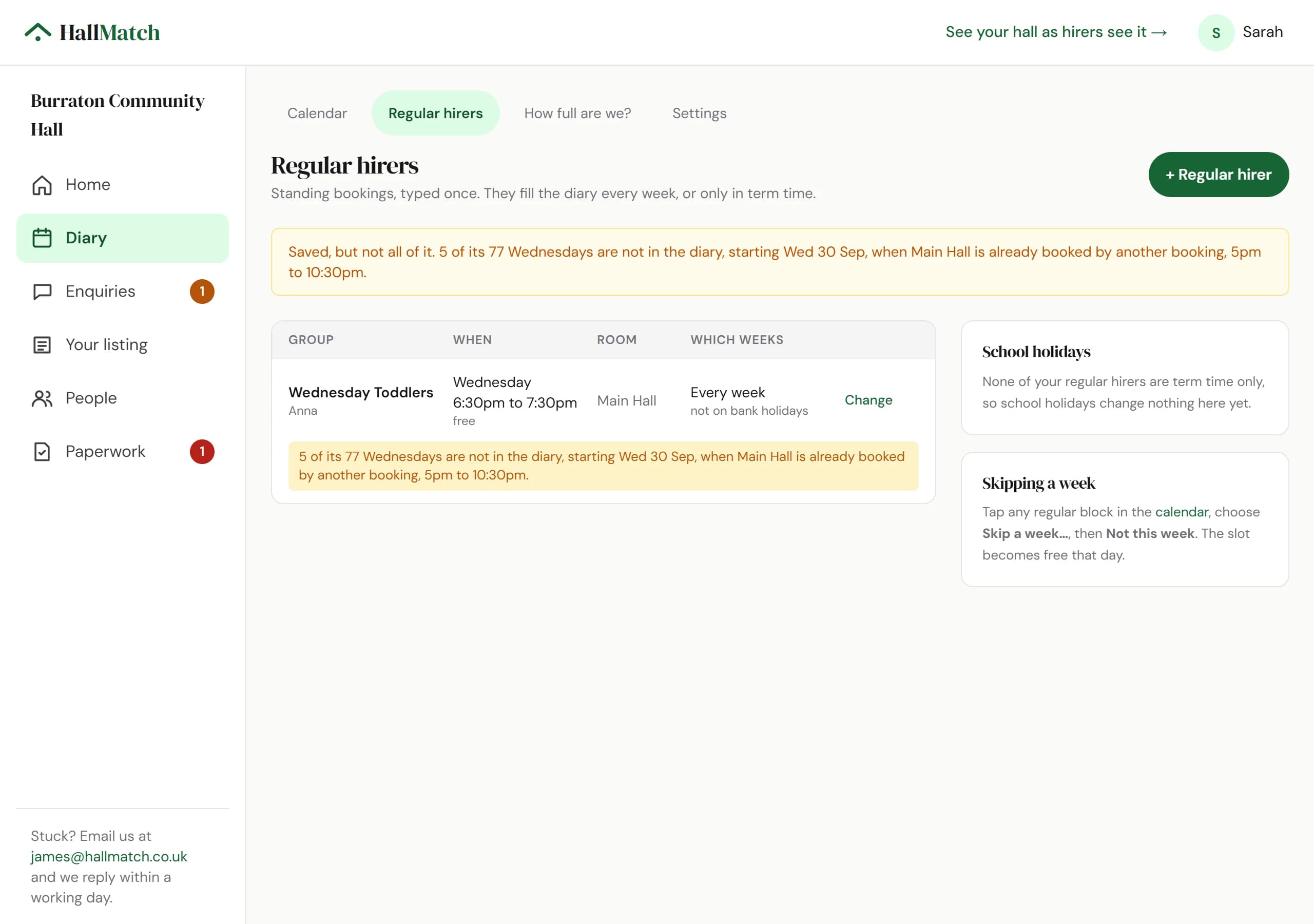
Regular hirers: Wednesday Toddlers, Wednesday 6:30pm to 7:30pm in the Main Hall, with a line saying 5 of its 77 Wednesdays are not in the diary, starting Wed 30 Sep, when the Main Hall is already booked by another booking, 5pm to 10:30pm.
Where to find itDiary, then Regular hirers
Show me
This change on its own page →
NewSearch with a date and the halls that are free come firstPick a date and halls that are free that day lead the results, with a Request this slot button.

This has changed since. On 24 September 2026: Pick your date when you start searching →

How to use it

  1. Step 1: Search for a place, then pick your date with the date button above the results.
  2. Step 2: Halls free that day say Free all day or give the free hours, and come first. The line on the right says how many are free.
  3. Step 3: Press Request this slot on a free hall, or open it: your date comes with you.

Good to know

  • Only halls that keep their diary on HallMatch can say they're free. A hall without one is never shown as busy.
  • Only halls free at this time hides the rest.
This change on its own page →
ImprovedHalls that answer their enquiries now come first in searchAmong halls a similar distance away, the ones that answer come first and the ones that never do come last.

Good to know

  • Distance still comes first: a quick hall twenty miles away won't jump ahead of one round the corner.
  • A hall that has had five or more enquiries in three months and answered none goes to the bottom of its group.
  • For halls, the quickest way up is to answer every enquiry, even when the answer is no. One press in the enquiry email counts.
This change on its own page →
NewSee your listing before it goes publicPreview your page shows exactly what hirers will see, before your hall is live.

How to use it

  1. Step 1: At the top of any dashboard page, press Preview your page. Your hall's page opens with a strip saying it isn't public yet.

Good to know

  • Once your listing is live, the same link reads See your hall as hirers see it.
The top of a hall's dashboard, with the link See your hall as hirers see it at the top right (marked 1). Before a listing is live the same link reads Preview your page.
Where to find itTop of any dashboard page
Show me
This change on its own page →
ImprovedYour listing is one page now, and it saves as you goYour listing is one page with a Change button on each part, and everything saves by itself.

How to use it

  1. Step 1: Open Your listing. The bar at the top says how much is done.
  2. Step 2: Press Change on any part. It opens where it is.
  3. Step 3: Type. It saves by itself and says Saved just now. Changed something by mistake? Press Undo.

Good to know

  • Short boxes, like the hall's name or a price, save when you move to the next box, so a stray key press doesn't go live halfway through a word.
  • Photos live here now too, under Your listing.
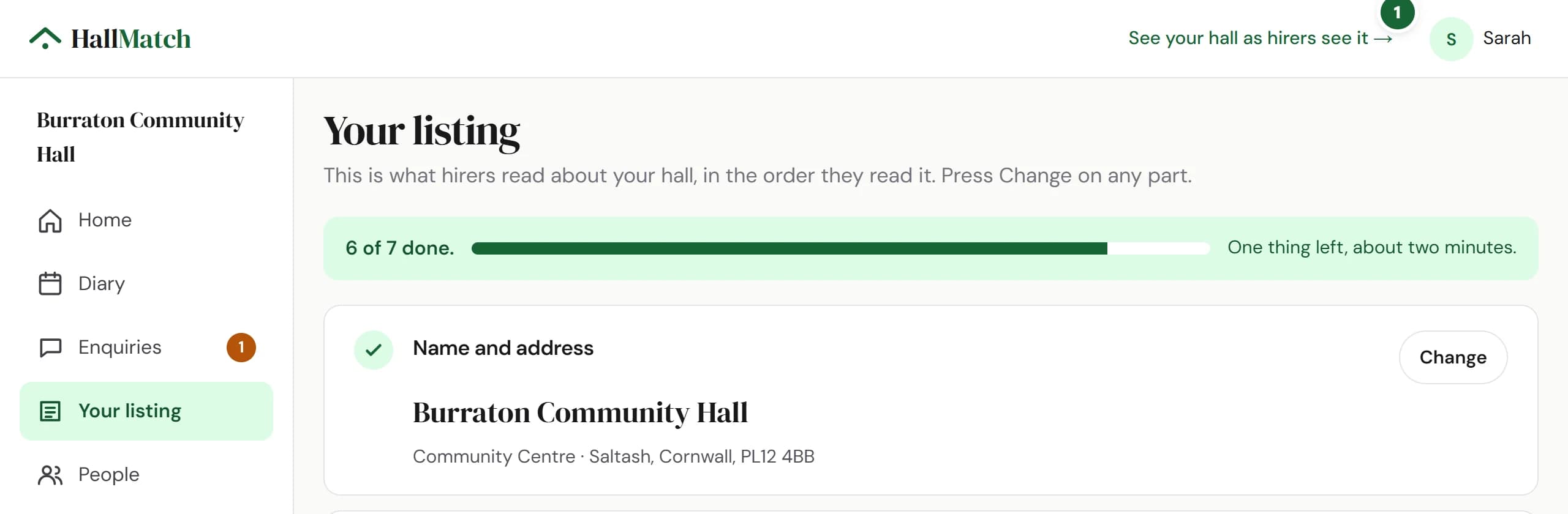
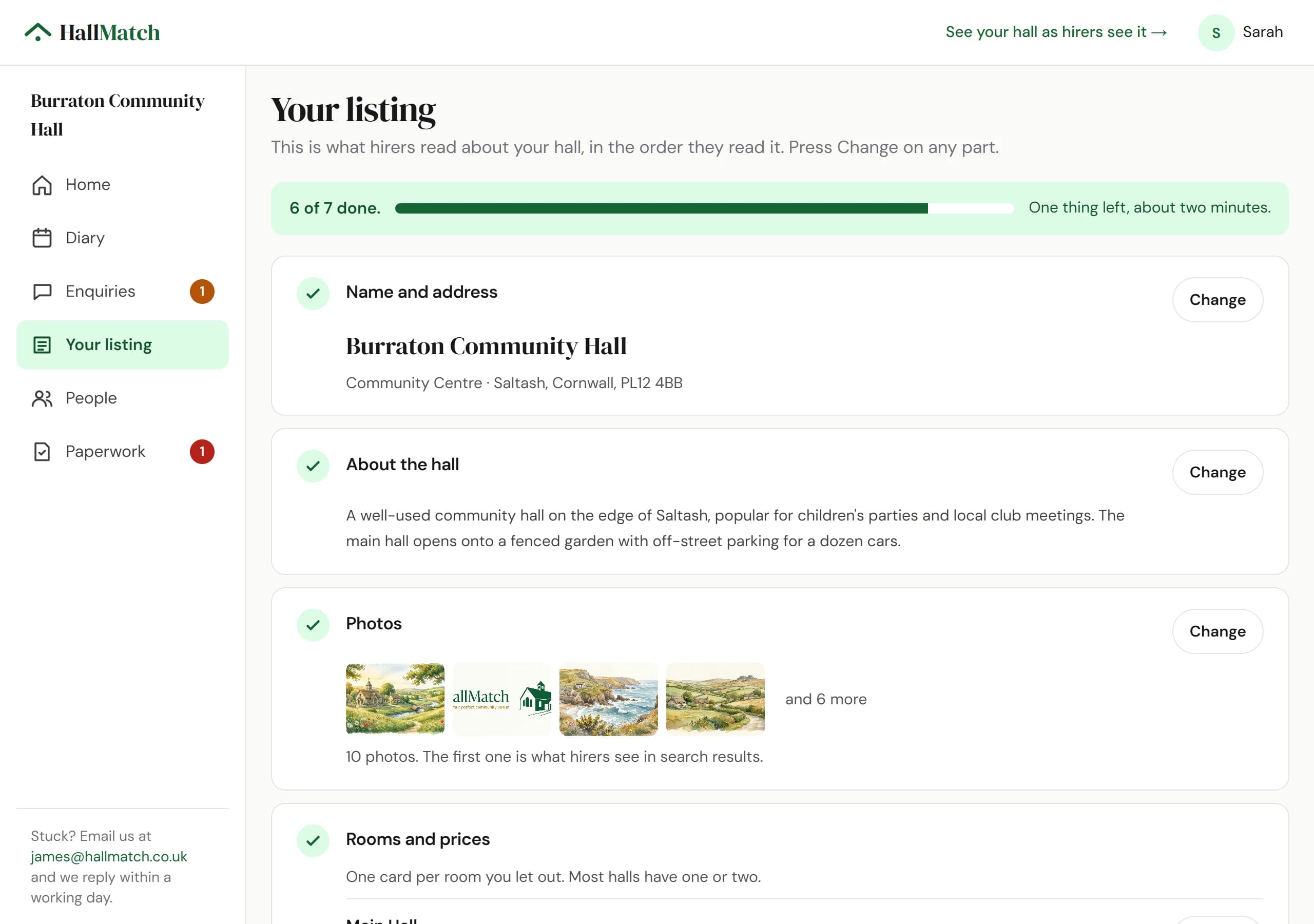
Your listing for Burraton Community Hall: 6 of 7 done, then Name and address, About the hall, Photos and Rooms and prices, each ticked with a Change button.
Where to find itYour listing
Show me
This change on its own page →
ImprovedBooking requests and enquiries are now in one placeEverything a hirer sends you is under Enquiries, sorted into Needs attention, Answered and All enquiries.

This has changed since. On 25 September 2026: Your newest enquiries now come first →

How to use it

  1. Step 1: Open Enquiries. Needs attention lists the hirers waiting on you, oldest first.
  2. Step 2: Press Start with the oldest and answer them one at a time.

Good to know

  • Booking requests from your diary keep their Accept button, and you can still offer another time.
  • Links in older emails still work and open the right enquiry.
This change on its own page →
ImprovedAdd all your paperwork dates in one goTick everything your hall keeps in date, then fill in the dates on one screen.

How to use it

  1. Step 1: Open Paperwork and press Add an item.
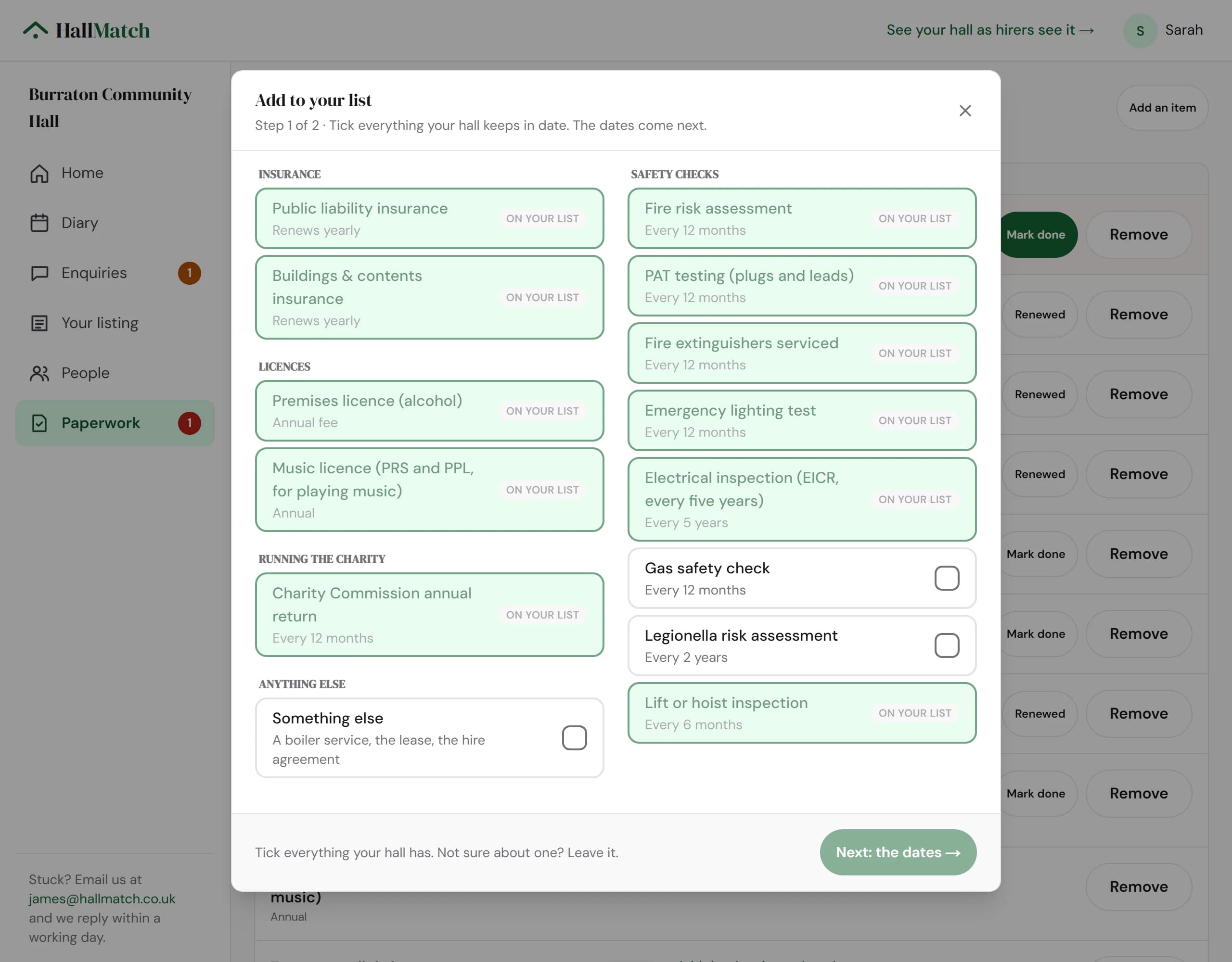
  2. Step 2: Tick everything your hall keeps in date: insurance, licences, safety checks and the rest. Press Next: the dates.
  3. Step 3: Put in the dates you know. Leave the others blank and add them later.

Good to know

  • As you type a date it shows when that item is next due and when we'll remind you.
  • Anything already on your list stays ticked, so nothing moves while you pick.
The Add to your list window, step 1 of 2: insurance, licences, safety checks and running the charity as tick boxes, some already On your list, and a Next: the dates button.
Where to find itPaperwork, then Add an item
Show me
This change on its own page →
ImprovedYour hall's name is now the green button at the topPress your hall's name at the top of any page to go straight to its dashboard.

How to use it

  1. Step 1: Sign in, then press your hall's name, the green button at the top of any page on HallMatch.

Good to know

  • When hirers are waiting for an answer, the button shows how many.
  • Look after more than one hall? It takes you to Your halls, where they're all listed.
The top of a HallMatch page when signed in: Find a venue, then a green button reading Burraton Community Hall with a count of 1 waiting (marked 1), then the account circle.
This change on its own page →
ImprovedAsk a hall about your date straight from its pageThe box on each hall's page now starts with your date and how many guests.

How to use it

  1. Step 1: On the hall's page, put your date and number of guests in the box beside the photos, or tick I'm flexible on dates.
  2. Step 2: Press Ask about your date, then add your times, the occasion, your name and email, and send.

Good to know

  • On a computer the box stays in view as you scroll.
  • Where a hall hasn't given a price, the box shows what it has told us instead, such as the room and how many it seats.
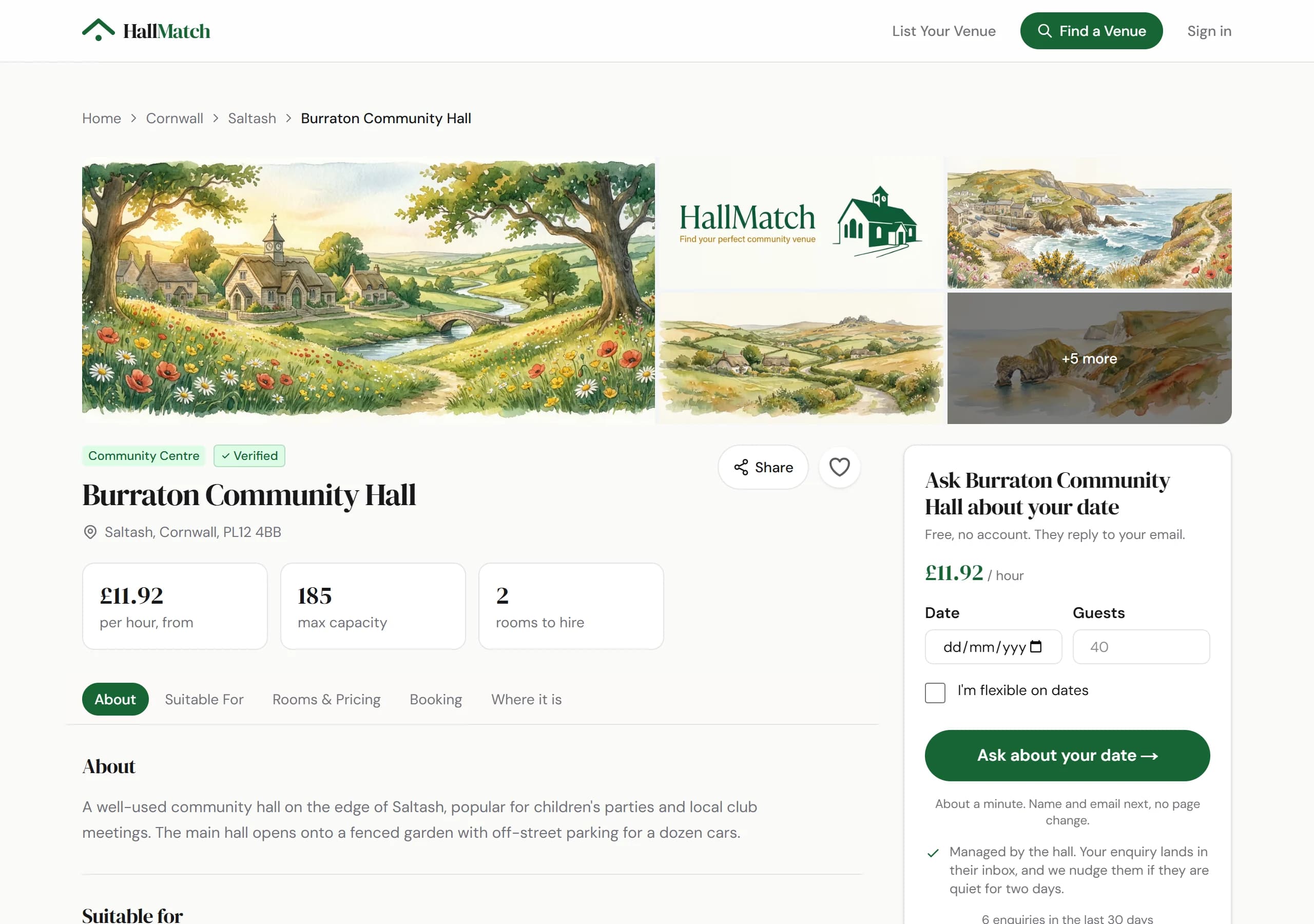
Burraton Community Hall's page: photos, the price from £11.92 an hour, and on the right a box headed Ask Burraton Community Hall about your date, with Date, Guests and an Ask about your date button.
Where to find itAny hall's page
Go to Any hall's page
This change on its own page →
FixedSigned in with a different email address? We now say soIf the address you signed in with doesn't look after the hall, the dashboard tells you, and how to get in.

What was wrong

Lots of halls have more than one email address. Signing in with one not linked to the hall sent you to an empty page without saying why, and trying to claim the hall again said it was already claimed.

What's different now

The dashboard says which address you're signed in with, that it doesn't look after that hall, and how to get in.

If this affected you

Sign in with the hall's address, or ask whoever looks after the hall to add you under People.

This change on its own page →
FixedClosed / not hiring no longer takes a hall off HallMatch by accidentThere's now an Another reason choice, and Closed / not hiring says what it will do before you press it.

What was wrong

When you tell a hirer you can't take their booking, the reply page offers a few reasons. The last, Closed / not hiring, also takes your hall off HallMatch. Some halls pressed it when they simply couldn't do that date and nothing else fitted.

What's different now

There's an Another reason choice with room to say what it is, and choosing Closed / not hiring changes the button to say it will take your listing down.

If this affected you

If your hall came off HallMatch this way and you're still taking bookings, reply to any email from us and we'll put it back.

This change on its own page →
FixedA car park isn't outdoor spaceWe've taken Outdoor space off listings where all we knew was that the hall had a car park.

What was wrong

Thousands of listings said a hall had Outdoor space when all we knew was that it had a car park. That came from the way we first gathered hall details.

What's different now

Outdoor space is off every listing where the hall hadn't told us so itself.

If this affected you

If your hall does have a garden, a field or a play area, add it under Your listing, then Facilities.

Where to find itYour listing, then Facilities
Show me
This change on its own page →
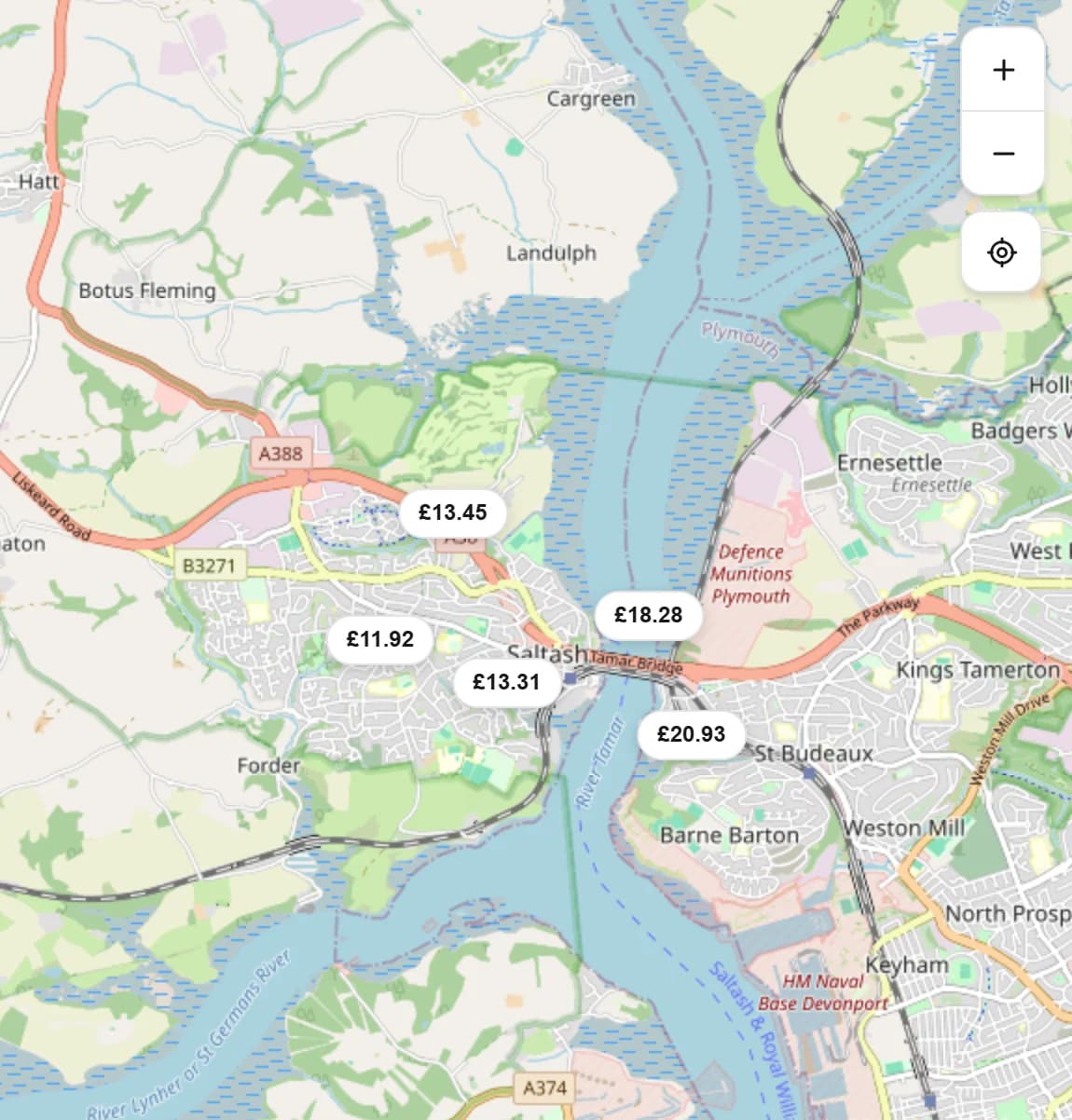
FixedThe map on Find a venue shows halls againThe map beside the search results works again, and follows you as you move it.

What was wrong

The map beside the search results had stopped showing halls, and on a wide search it never finished loading.

What's different now

It shows the halls in the part of the map you're looking at, with prices, and updates as you move or zoom. Zoomed right out it counts halls by county instead of drawing thousands of pins. Back takes you back to your search.

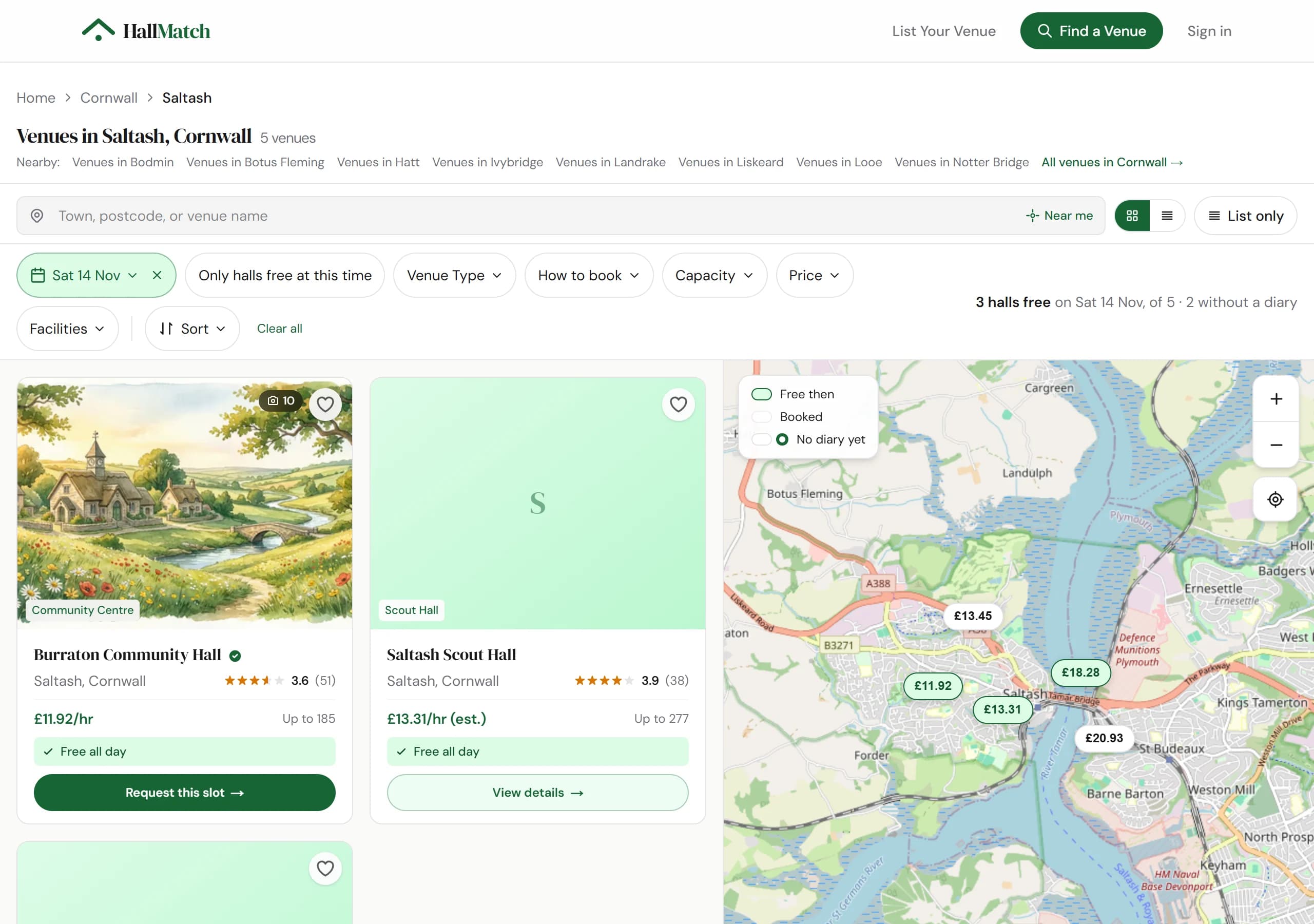
The map beside the Saltash results, showing each nearby hall as its hourly price, with the river and the villages around it.
Where to find itFind a venue
Go to Find a venue
This change on its own page →
FixedDate and time boxes no longer zoom your iPhone inTapping a date or time box on an iPhone no longer leaves the page stuck zoomed in.

What was wrong

On an iPhone, tapping the date, or the From and To times, in the search filters, or the room picker at the top of the hall diary, zoomed the page in and left it there.

What's different now

They don't any more.

This change on its own page →
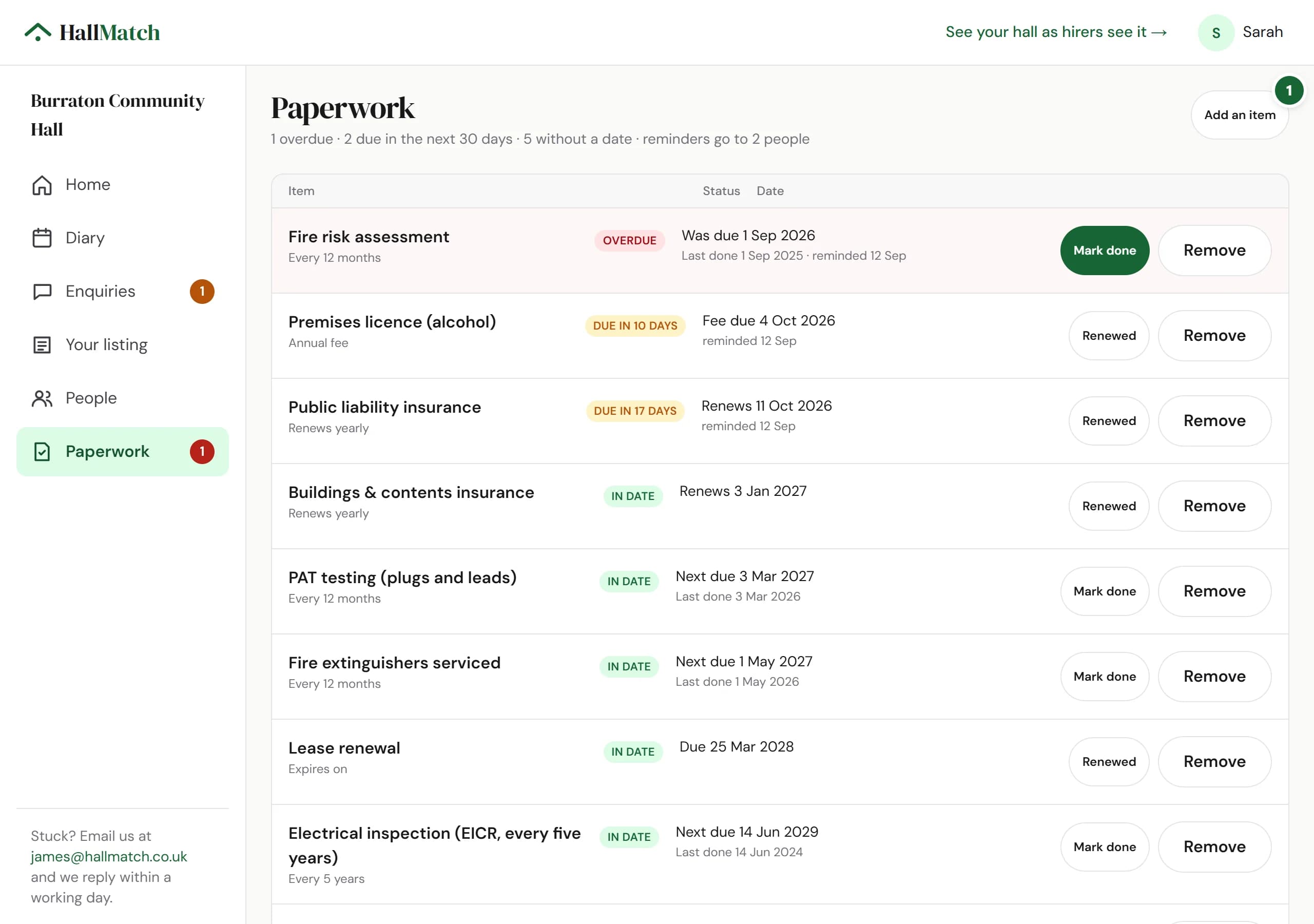
NewReminders before your insurance, licences and safety checks run outPut each renewal date in once and we email before it falls due, to whoever you choose.

How to use it

  1. Step 1: Open Paperwork and press Add an item to put in the dates your hall keeps: insurance, the premises licence, the fire risk assessment, PAT testing and so on.
  2. Step 2: When one is renewed, press Mark done. The next date is worked out for you.

Good to know

  • We email thirty days before, seven days before, and once more if the date passes. After that it's in your monthly summary, then we stop.
  • Choose who gets them under People. They don't need an account: Just get the paperwork reminders suits a treasurer or safety officer.
Paperwork: 1 overdue and 2 due in the next 30 days. The fire risk assessment is overdue with a Mark done button; the premises licence and public liability insurance are due soon; the rest are in date. Add an item is marked 1.
Where to find itPaperwork
Show me
This change on its own page →
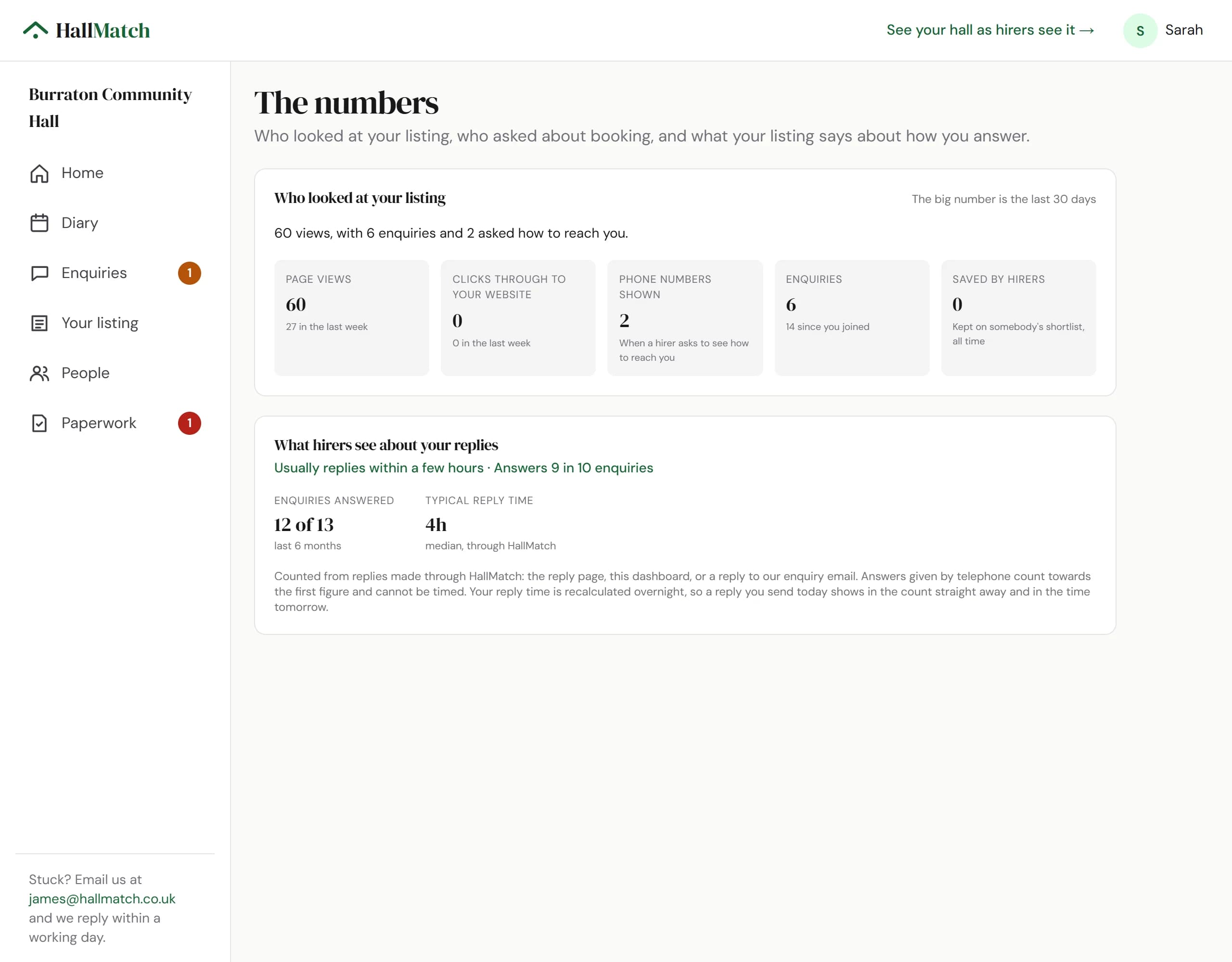
NewSee what your listing tells hirers about your repliesThe numbers page shows what your listing says about how you answer, and what would change it.

This has changed since. On 25 September 2026: Numbers has its own place in the menu, from looking to booking →

How to use it

  1. Step 1: Open The numbers (on a phone, it's under More) to see what your listing says about you today, your own reply figures, and the one thing that would change it.

Good to know

  • Once a hall answers seven in ten of its enquiries, its listing says so, with how quickly it usually replies. Below that it says nothing either way.
  • We can only count answers sent with the buttons in the enquiry email or on the reply page. If you ring the hirer instead, press I'll ring them first.
This change on its own page →
ImprovedIf you ask to come off HallMatch, your hall comes off everywhere and stays offA hall that asks to be taken off now disappears from every page at once, and isn't added back.

How to use it

  1. Step 1: Reply to any email we've sent the hall, or write to us from the contact page, and say you'd like to come off.

Good to know

  • It comes off search, the county and town pages, the map and the list we give search engines at once. Its photos come down too.
  • It stays off: we don't add it back when we look for new halls, and nobody else can claim it back onto the site.
Where to find itContact us
Go to Contact us
This change on its own page →
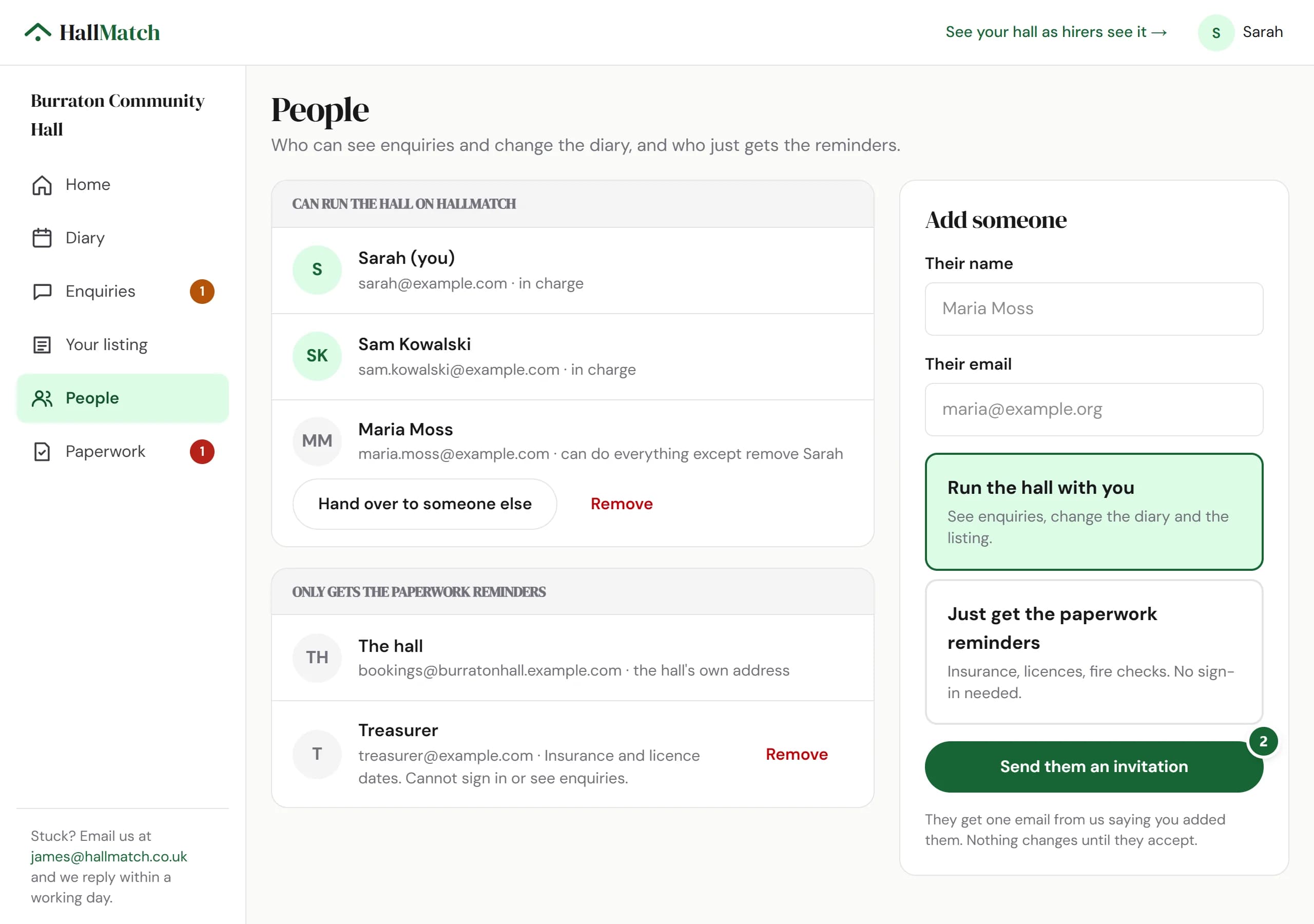
NewInvite someone else to help look after the hallAdd the booking secretary, the treasurer or anyone else who helps, and choose what they can do.

How to use it

  1. Step 1: Open People. Under Add someone, put in their name and email.
  2. Step 2: Choose Run the hall with you or Just get the paperwork reminders, and press Send them an invitation.

Good to know

  • You can see whether they've opened it yet.
  • Stepping down? Hand over to someone else on the same page.
People: Sarah, Sam Kowalski and Maria Moss can run the hall on HallMatch; the hall's address and the treasurer only get the paperwork reminders; and an Add someone form with a choice of Run the hall with you or Just get the paperwork reminders, and a Send them an invitation button (marked 2).
Where to find itPeople
Show me
This change on its own page →
NewRegular hirers can give back a week they don't needSend each regular their own link, and they can let a week go themselves.

How to use it

  1. Step 1: Open the regular hirer and, under Their own link, press the button to email them their link.

Good to know

  • Their link lists their coming sessions, each with a Don't need it button. A week they give back shows free in your diary straight away, marked as from their link.
  • They don't need an account.
  • You can still skip a week yourself: tap the block in the calendar and choose Skip a week….
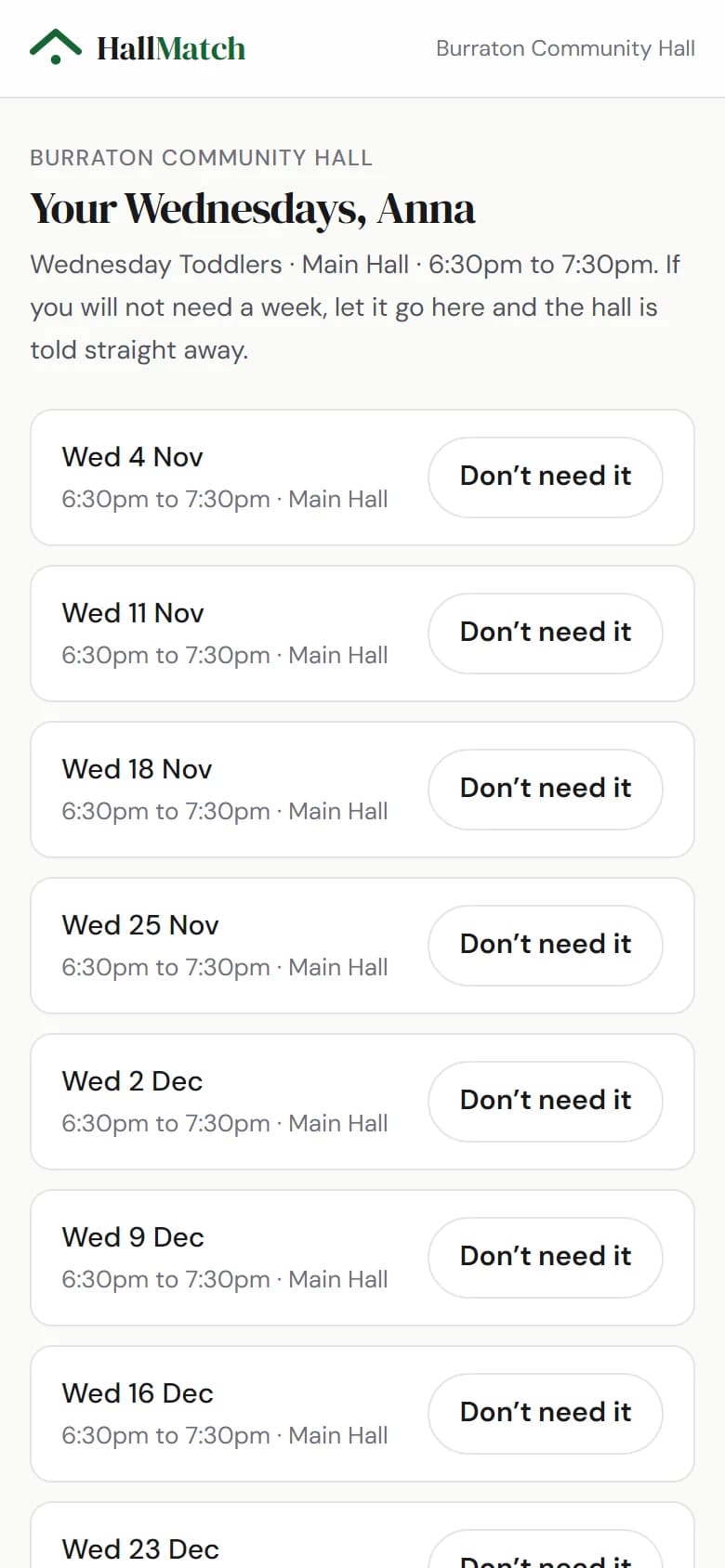
On a phone, a regular hirer's own page: Your Wednesdays, Anna, Wednesday Toddlers in the Main Hall, 6:30pm to 7:30pm, then each coming Wednesday with a Don't need it button.
Where to find itDiary, then Regular hirers
Show me
This change on its own page →
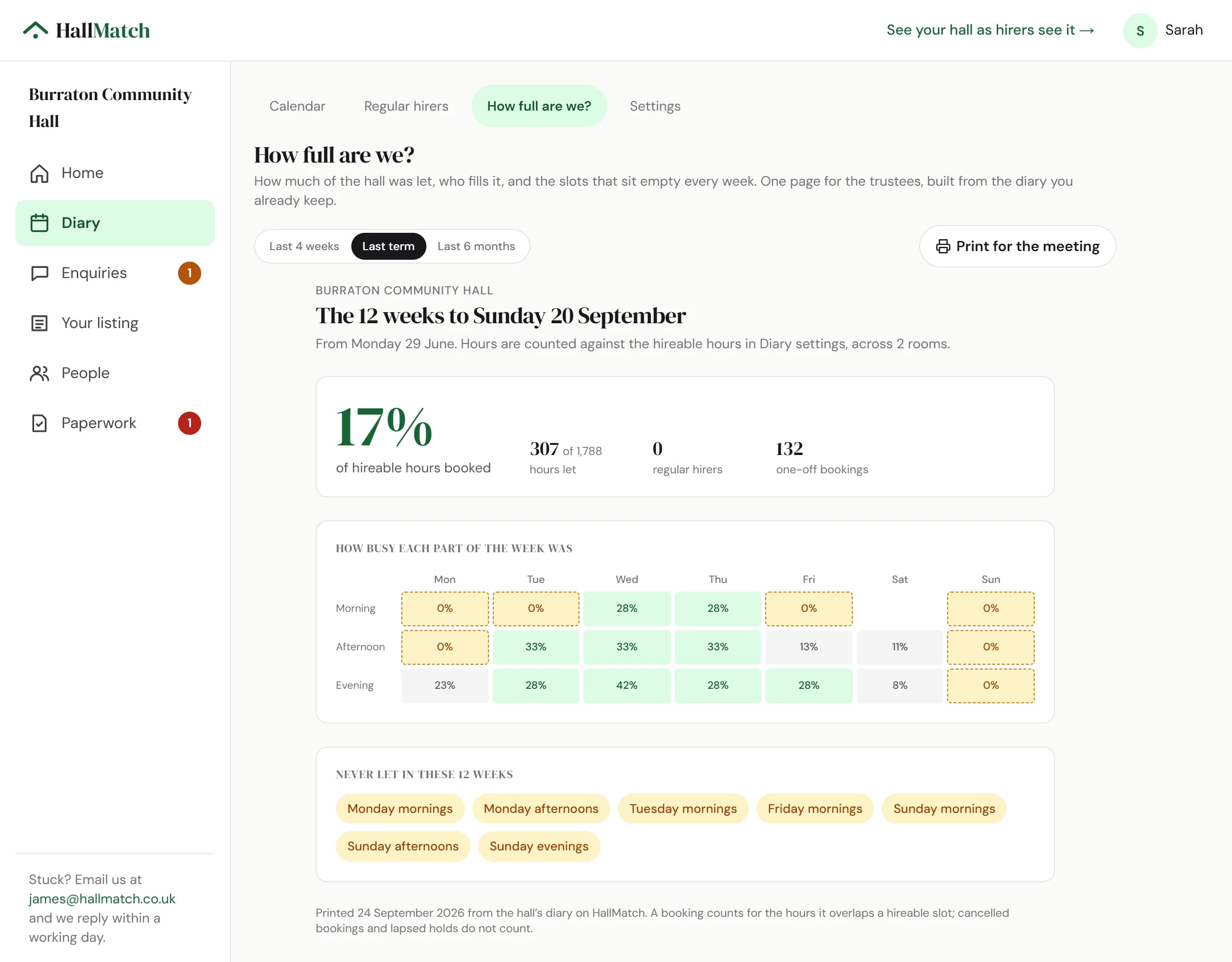
NewA page you can print showing how busy the hall has beenDiary → How full are we? shows how well each room is used, laid out to print for the committee.

This has changed since. On 25 September 2026: Numbers has its own place in the menu, from looking to booking →

How to use it

  1. Step 1: Open Diary, then How full are we?
  2. Step 2: Choose Last 4 weeks, Last term or Last 6 months, then press Print for the meeting.

Good to know

  • Worked out from the bookings in your HallMatch diary, so it's as full as your diary is.
This change on its own page →
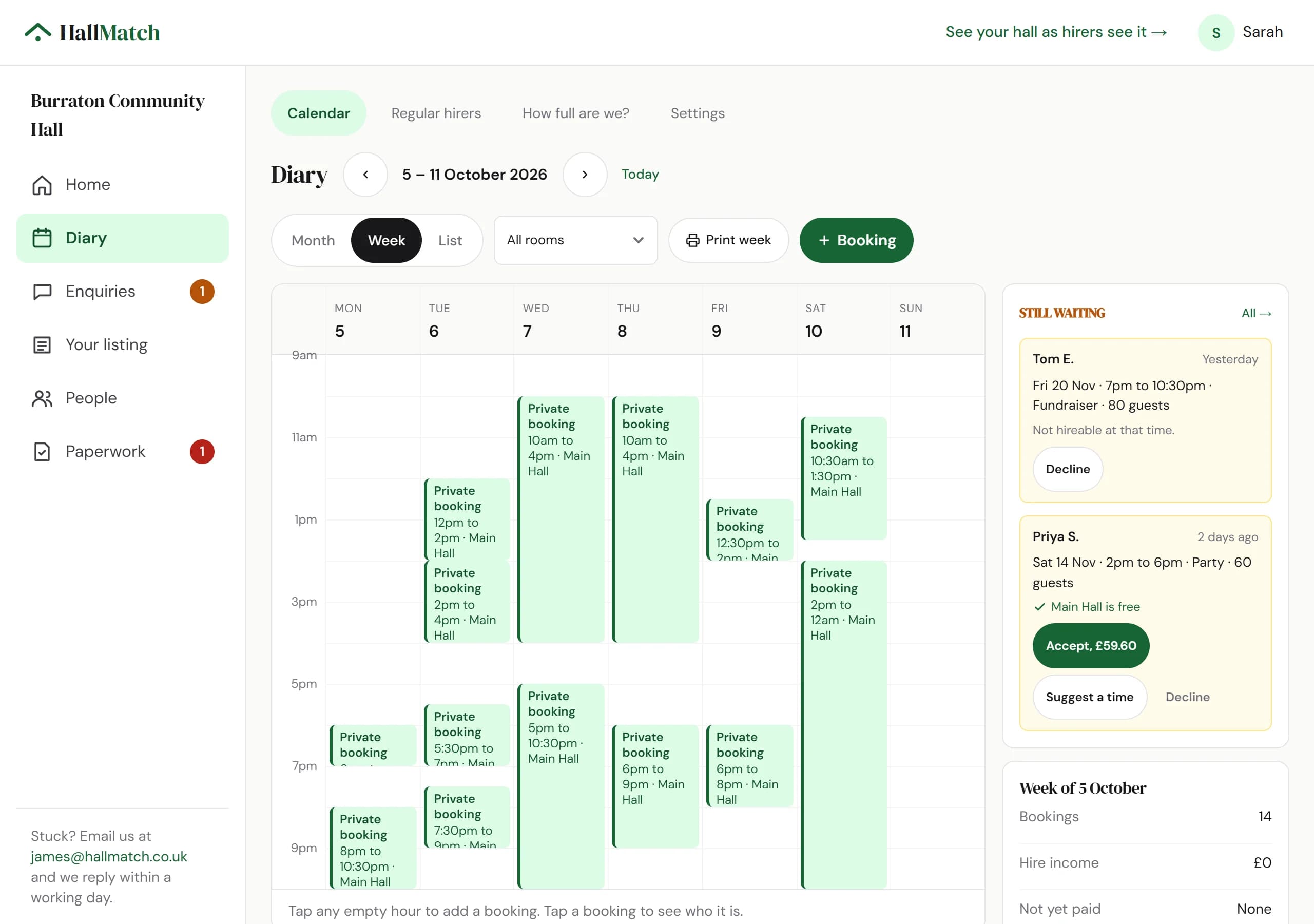
NewA free diary for your hall, if you want oneKeep rooms, bookings and regulars on HallMatch for free, and let hirers see which dates are free.

This has changed since. On 25 September 2026: Book, move and stretch bookings by dragging them in your diary →

How to use it

  1. Step 1: Open Diary and press + Booking to put a booking in, or Regular hirers for groups that come every week.
  2. Step 2: To let hirers see which dates are free, open Settings and turn on What hirers can see.
  3. Step 3: Press Print week for the noticeboard.

Good to know

  • Hirers only ever see free and busy. Never who has booked or what for.
  • Already use another booking system? You don't need to move: keep your bookings where they are, and hirers still find you on HallMatch.
  • Requests from hirers wait in Still waiting beside the week, with Accept, Suggest a time and Decline.
This change on its own page →
NewAsk up to five halls at once, freeDescribe your event once, pick up to five halls, and we send your enquiry to each of them.

How to use it

  1. Step 1: In Find a venue, press the heart on each hall you like. They go on your shortlist.
  2. Step 2: Press Enquire with at the foot of the screen, describe your date, place and guests once, and send.

Good to know

  • Their answers come straight to your email.
  • It's free, and each hall gets your enquiry just as if you'd written to it yourself.
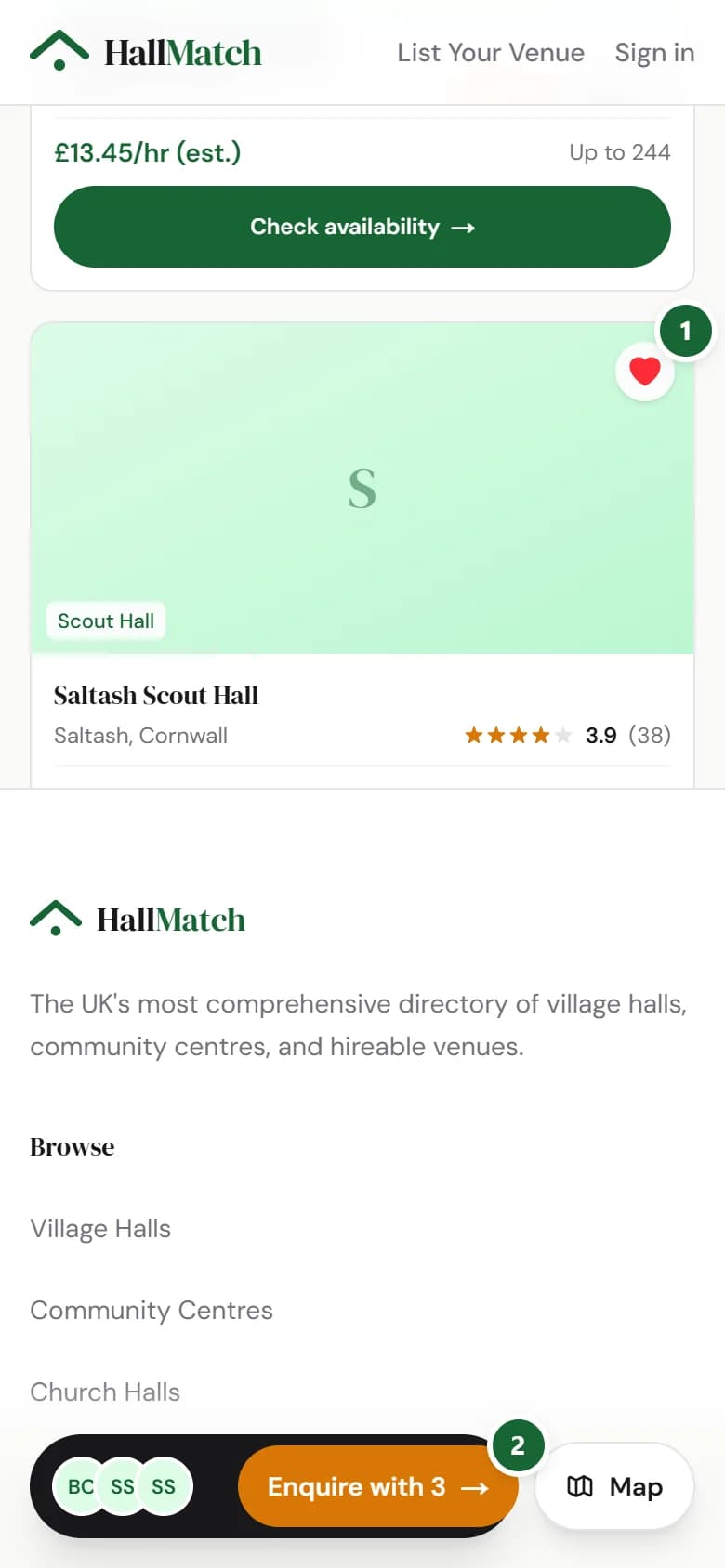
On a phone, Saltash's halls with three hearts filled (marked 1), and a bar at the foot of the screen with the three halls' initials and an Enquire with 3 button (marked 2).
Where to find itFind a venue
Go to Find a venue
This change on its own page →