Skip to content
HallMatch

What's new

What we've changed on HallMatch

Every change we make for halls and the people who hire them, newest first. Each one shows you the screen and says how to use it.

Last change 16 November 2026 · 49 changes so far

Follow along on Facebook

October 2026

New this month: a website for your hall, built from the listing you already keep up to date.

The two that matter most

NewFor halls

Choose whether hirers can include your hall when asking several halls

A new enquiry setting gives your hall the choice. Filter your inbox to see enquiries sent only to you or to several halls.
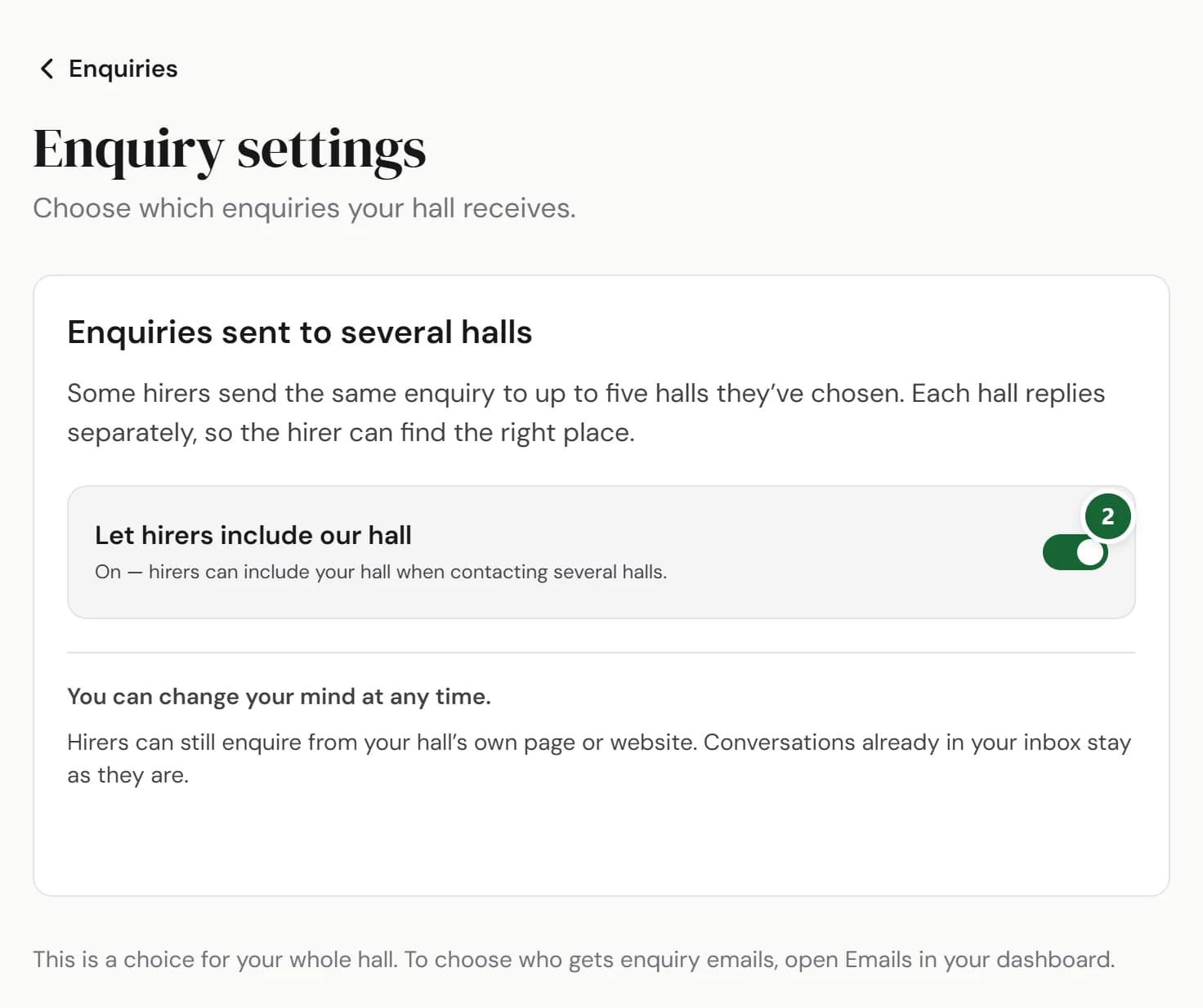
Enquiry settings with Let hirers include our hall switched on, marked 2, and an explanation of which enquiries the setting changes.
One choice for your hall. Change it at any time.

How to use it

  1. Step 1: Open Enquiries in your dashboard, then Settings.
  2. Step 2: Switch Let hirers include our hall on or off. Your choice saves straight away for the whole hall. Press Undo to change it back.
  3. Step 3: Back in Enquiries, use Enquiry type to choose Sent to this hall only or Sent to several halls. You can also choose Needs you, Answered or All.

Good to know

  • Only the hall’s owner can change the setting. Other people at your hall can see it and use the filters.
  • It starts on, so nothing changes until you choose. Turning it off stops new enquiries through the form for contacting several halls.
  • Hirers can still contact your hall directly or through your website. Conversations already in your inbox stay there.
  • An enquiry shows how many other halls it was sent to. Your reply goes to the hirer; other halls cannot see it.
Where to find itEnquiries, then Settings
Show me
NewFor halls

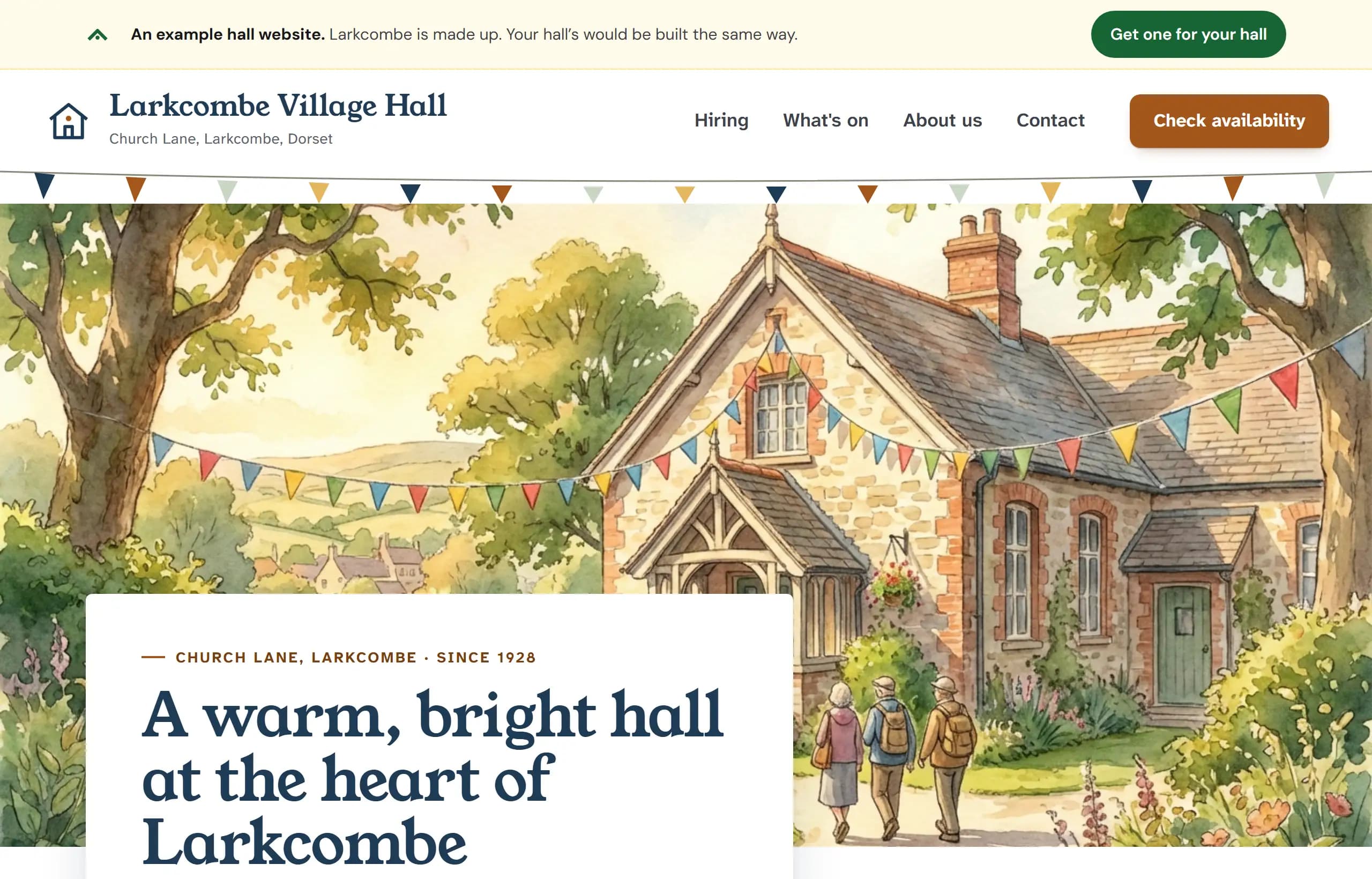
A website for your hall, made from your HallMatch listing

Your rooms, prices, photos and free dates, already on your hall’s own website. Look round an example, then try yours free.

Larkcombe Village Hall's example website: a bar across the top says it is an example and Larkcombe is made up, with Get one for your hall, then the hall's own menu, photo and welcome.
Larkcombe is an example hall. Yours would be built from your listing.

How to use it

  1. Step 1: Open Websites for halls and choose Visit the website to look round an example.
  2. Step 2: If you manage your hall, open Website in your dashboard and press Save my private website.
  3. Step 3: When you’re ready, press Publish free for 30 days.

Good to know

  • Your preview is made from your listing. It is free and private, with no countdown.
  • Publishing starts a free 30-day trial: no card and no automatic charge. After that it’s £120 a year, only if you choose it.
  • Your listing, enquiries and diary stay free.
  • We never touch your email. The example halls are made up, so a pretend enquiry reaches nobody.
Where to find itFor halls, then Websites for halls
Go to Websites for halls

Everything else in October · 10

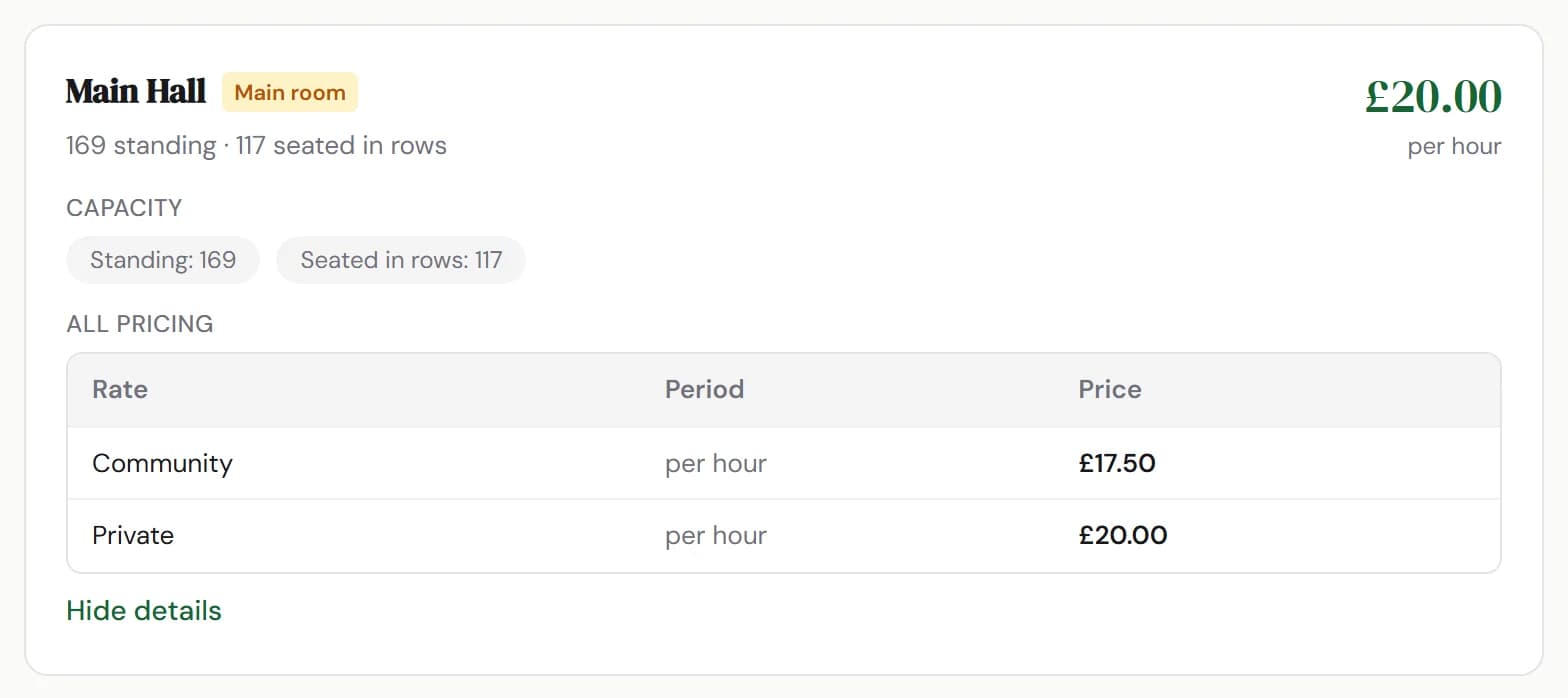
ImprovedA hall's page now leads with the price anyone can book atA hall's page and search now quote its everyday hire rate where it has one, with local group rates listed in full under each room.

Good to know

  • Nothing to do. We work it out from the prices a room already has.
  • Show details and full pricing on each room lists every rate, including what local groups pay.
  • Run a hall? Change your prices under Rooms and prices on your listing.
A room card on a hall's page: Main Hall leads with £20.00 per hour, and All pricing below lists Community at £17.50 and Private at £20.00.
Where to find itYour listing, then Rooms and prices
Show me
This change on its own page →
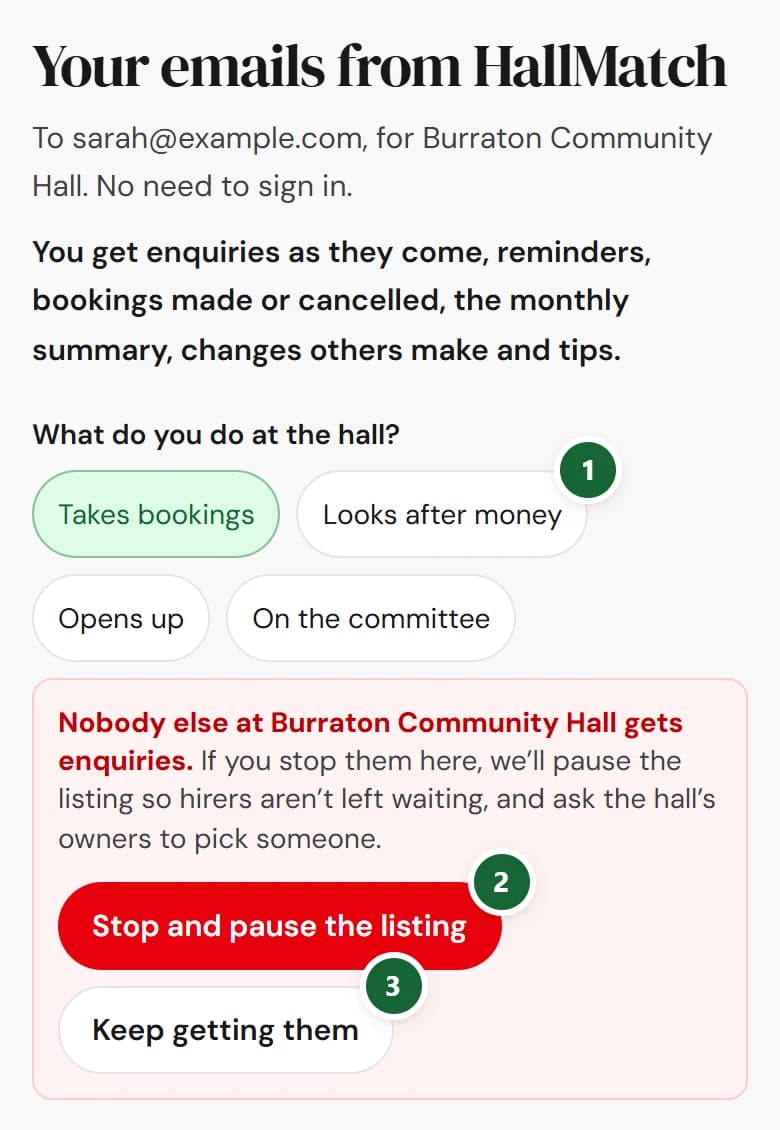
ImprovedChoose what happens before the last person stops your hall's enquiriesIf nobody else at your hall gets enquiries, Your emails asks you first, and nothing changes until you say so.

How to use it

  1. Step 1: Press Choose what you get in any email from us, then pick a job that doesn't get enquiries, such as Looks after money.
  2. Step 2: To stop, press Stop and pause the listing. We pause your listing and ask the hall's owners to pick someone.
  3. Step 3: To carry on, press Keep getting them. Nothing changes.

Good to know

  • Stop and pause the listing is ready to press after two seconds.
  • Every other change on the page still takes one tap.
  • To turn enquiries back on after a pause, Pause enquiries or leave offers Choose on Emails until someone at the hall is picked.
On a phone, Your emails from HallMatch: Looks after money marked 1, then a panel saying nobody else at the hall gets enquiries, with Stop and pause the listing marked 2 and Keep getting them marked 3.
This change on its own page →
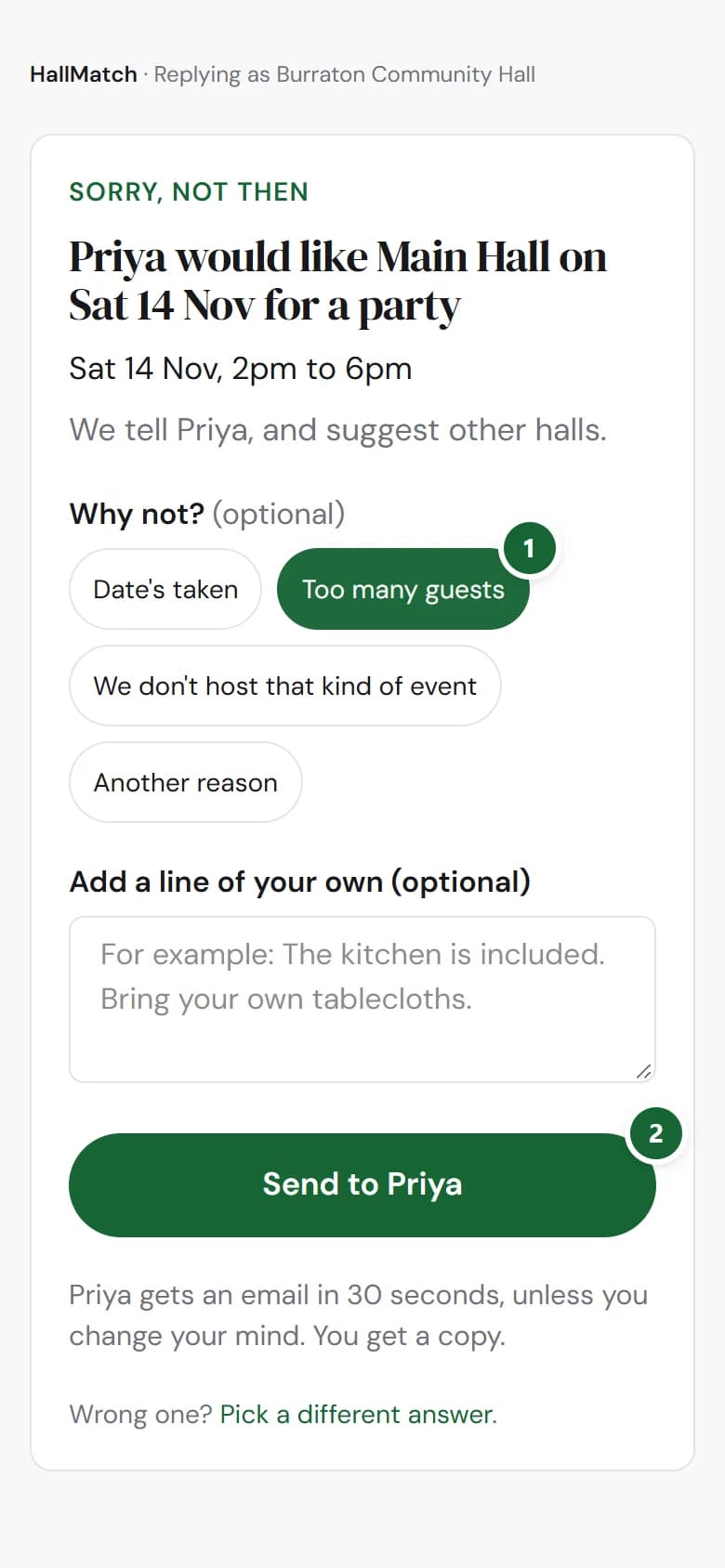
ImprovedTell a hirer why, in one tap, when you say no from the enquiry emailSorry, not then now lets you pick a reason, so the hirer knows whether to try another date or another hall.

How to use it

  1. Step 1: In the enquiry email, press Sorry, not then.
  2. Step 2: Under Why not?, tap Date's taken, Too many guests, We don't host that kind of event or Another reason. Tap it again to clear it.
  3. Step 3: Add a line of your own if you like, then press Send to the hirer.

Good to know

  • A reason is optional. Your answer goes with or without one.
  • The hirer reads it as a sentence, such as that the hall can't take a group that size, with your own line after it.
  • Date's taken is offered only when the hirer gave a date.
  • You still have thirty seconds to change your mind.
On a phone, the Sorry, not then page: Why not? with Too many guests picked (marked 1), a box for a line of your own, and the Send to Priya button (marked 2).
This change on its own page →
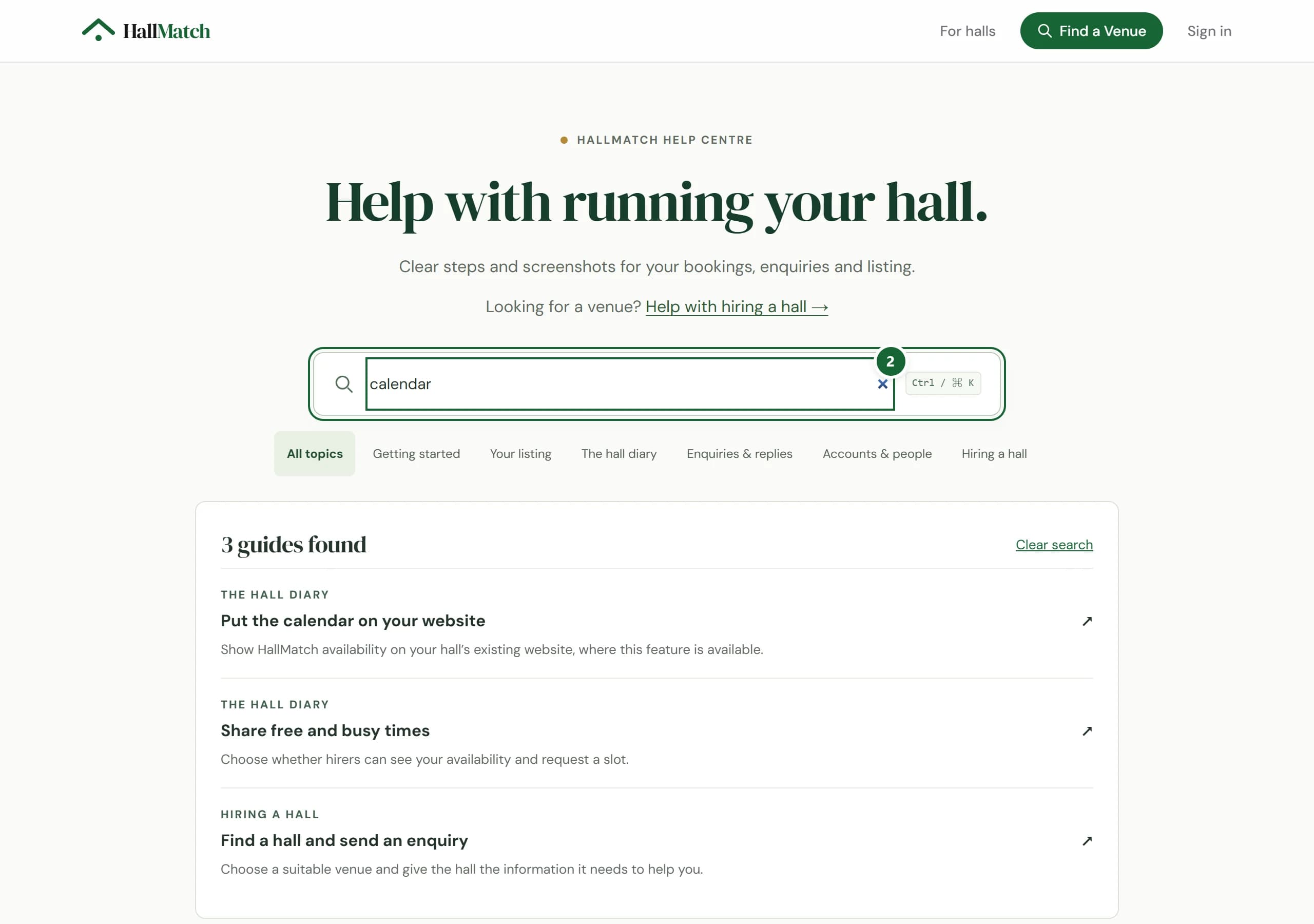
NewFind step-by-step help guides for running your hallThe new Help centre has short guides, from claiming your hall to adding a booking, each naming the screen and the buttons to press.

How to use it

  1. Step 1: Press Help centre at the foot of any HallMatch page, or Help guides at the foot of your dashboard.
  2. Step 2: Search, for example “calendar”, or pick a topic such as The hall diary.
  3. Step 3: Open a guide. Where to go names the screen, and the steps name each button in order.

Good to know

  • You don't need to sign in to read the guides.
  • Hiring a hall? Help with hiring a hall takes you to the guide for hirers.
  • Still stuck? Contact the team at the foot of the Help centre.
The HallMatch Help centre with calendar typed in the search box (marked 2) and three guides found, including Put the calendar on your website.
Where to find itHelp centre
Go to Help centre
This change on its own page →
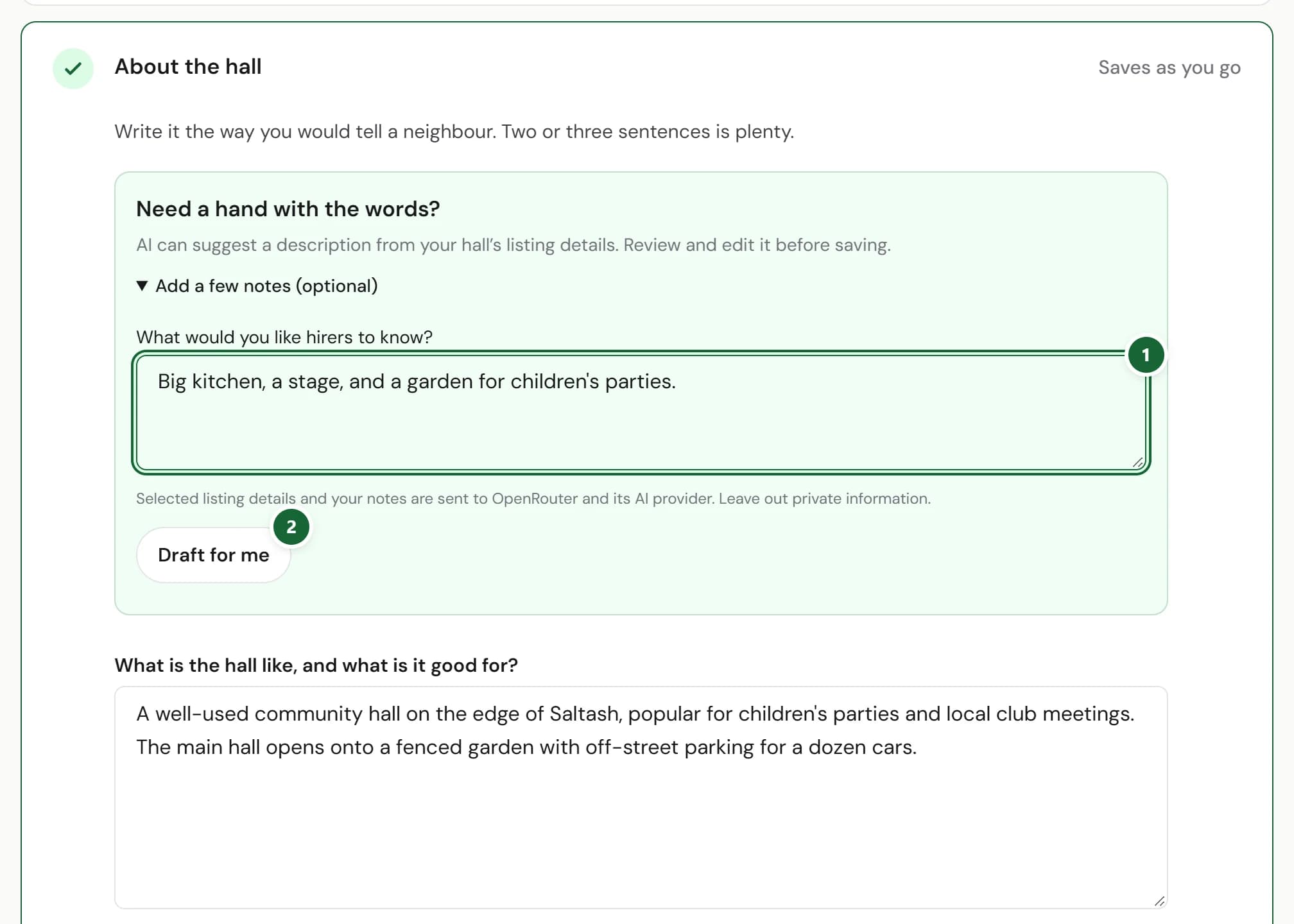
NewGet a first draft of your hall’s description, then make it your ownStuck for words? About the hall can suggest a description from your listing and a few notes. Nothing changes until you choose to use it.

How to use it

  1. Step 1: In Your listing, open About the hall. Under Need a hand with the words?, press Add a few notes (optional) and say what you’d like hirers to know.
  2. Step 2: Press Draft for me. Read the suggestion and check the facts.
  3. Step 3: Press Use and save description to put it on your listing, then edit it as you like. Discard suggestion leaves your words as they are.

Good to know

  • Your listing details and your notes are sent to OpenRouter and its AI provider to write the draft. Leave out anything private.
  • Changed your mind after using it? Restore previous description puts your old words back.
  • You can ask for up to ten drafts a day.
  • If you have a website, its welcome and About sections offer the same help.
About the hall in Your listing: the Need a hand with the words? box with a note about the kitchen, stage and garden (marked 1) and the Draft for me button (marked 2), above the hall's description.
Where to find itYour listing, then About the hall
Show me
This change on its own page →
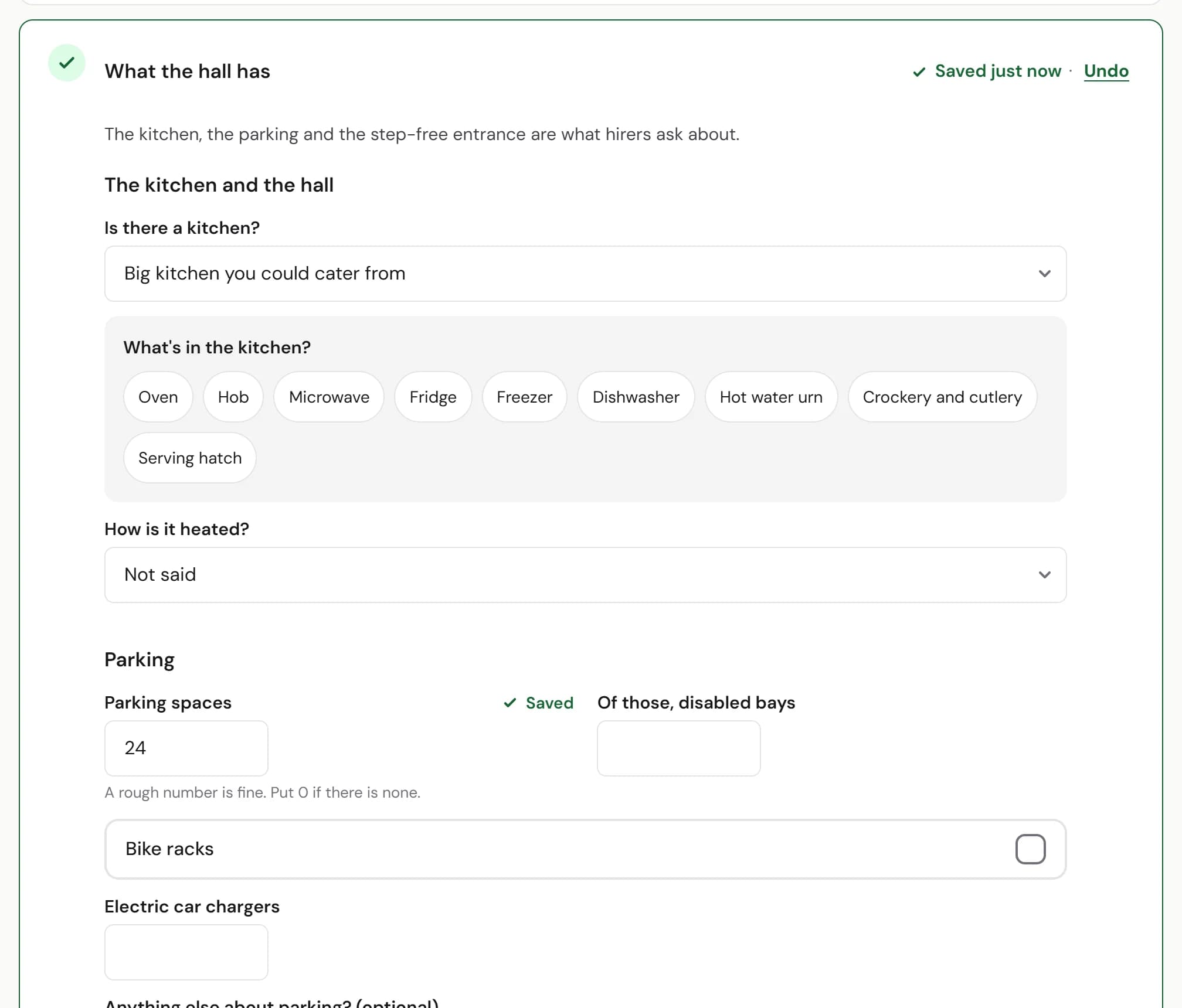
ImprovedChange every detail hirers see on your venue page, from parking to licencesYour listing now covers everything your public page shows: the kitchen, parking, getting in, licences and safety, and more about each room.

How to use it

  1. Step 1: In Your listing, open What the hall has. Parking, The kitchen and the hall, Getting in, and the toilets and Licences and safety each have a group of their own.
  2. Step 2: Under Rooms and prices, open a room to add other layouts, a note about the price and what the room is like.

Good to know

  • What you save is what hirers see. It stays as you wrote it, whatever turns up online.
  • Where we found something online, the box says so until you check it. Press Looks right if it is.
  • Every group is optional. Fill in what hirers ask you about most.
What the hall has, open in Your listing: The kitchen and the hall with a big kitchen chosen and what is in it, then Parking with 24 spaces, bike racks and electric car chargers.
Where to find itYour listing, then What the hall has
Show me
This change on its own page →
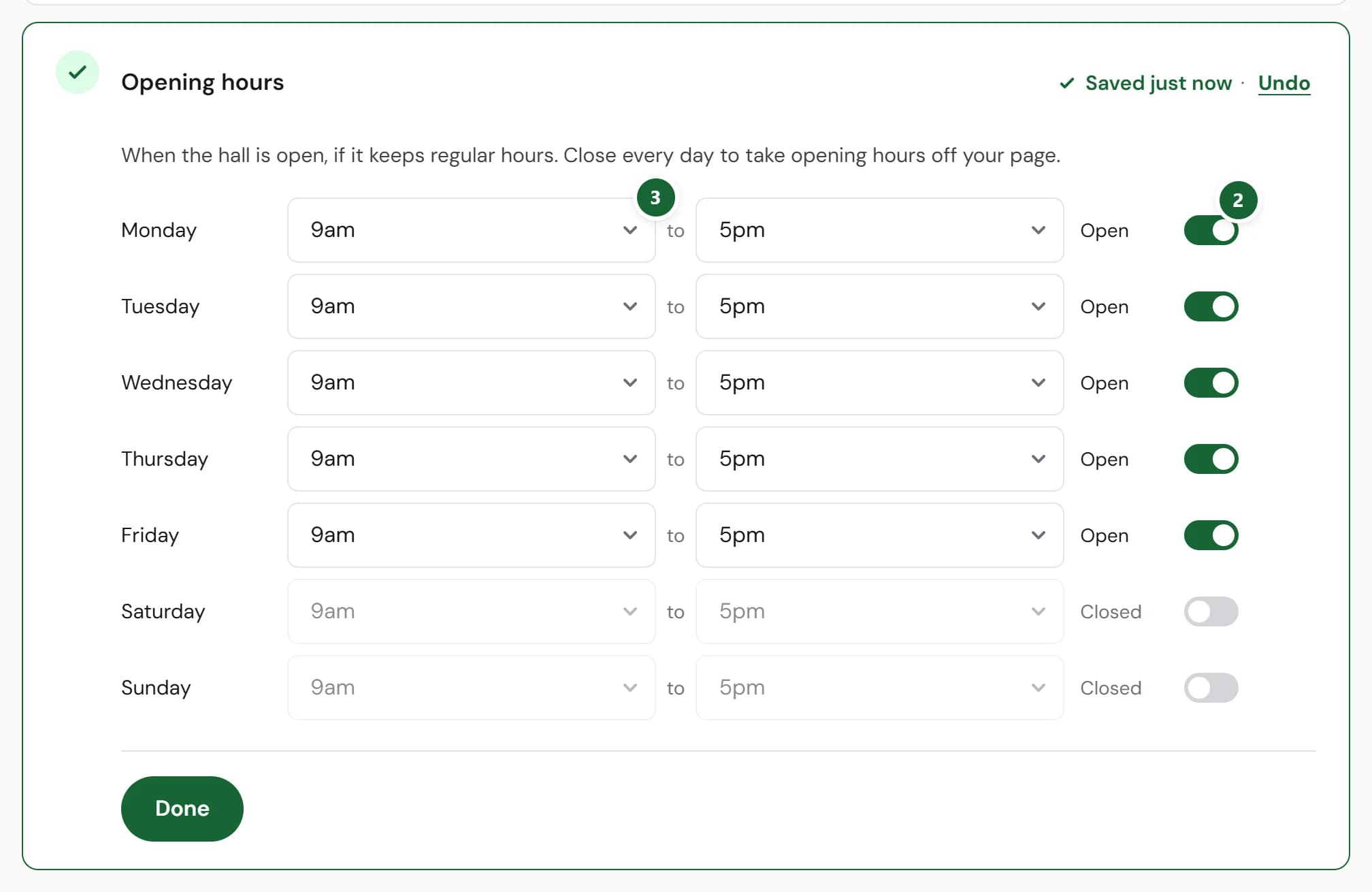
NewSet your hall’s opening hours yourselfA new Opening hours card on your listing sets the times hirers see on your page, one day at a time.

How to use it

  1. Step 1: In Your listing, press Add hours on Opening hours, the last card.
  2. Step 2: Switch each day the hall opens from Closed to Open.
  3. Step 3: Choose when it opens and closes that day. Each change saves as you go.

Good to know

  • Only add opening hours if the hall keeps regular ones. Close every day to take them off your page.
  • Your hours show on your venue page and in search results.
The Opening hours card in Your listing: Monday to Friday switched to Open (Monday's switch marked 2) with times from 9am (marked 3), and the weekend Closed.
Where to find itYour listing, then Opening hours
Show me
This change on its own page →
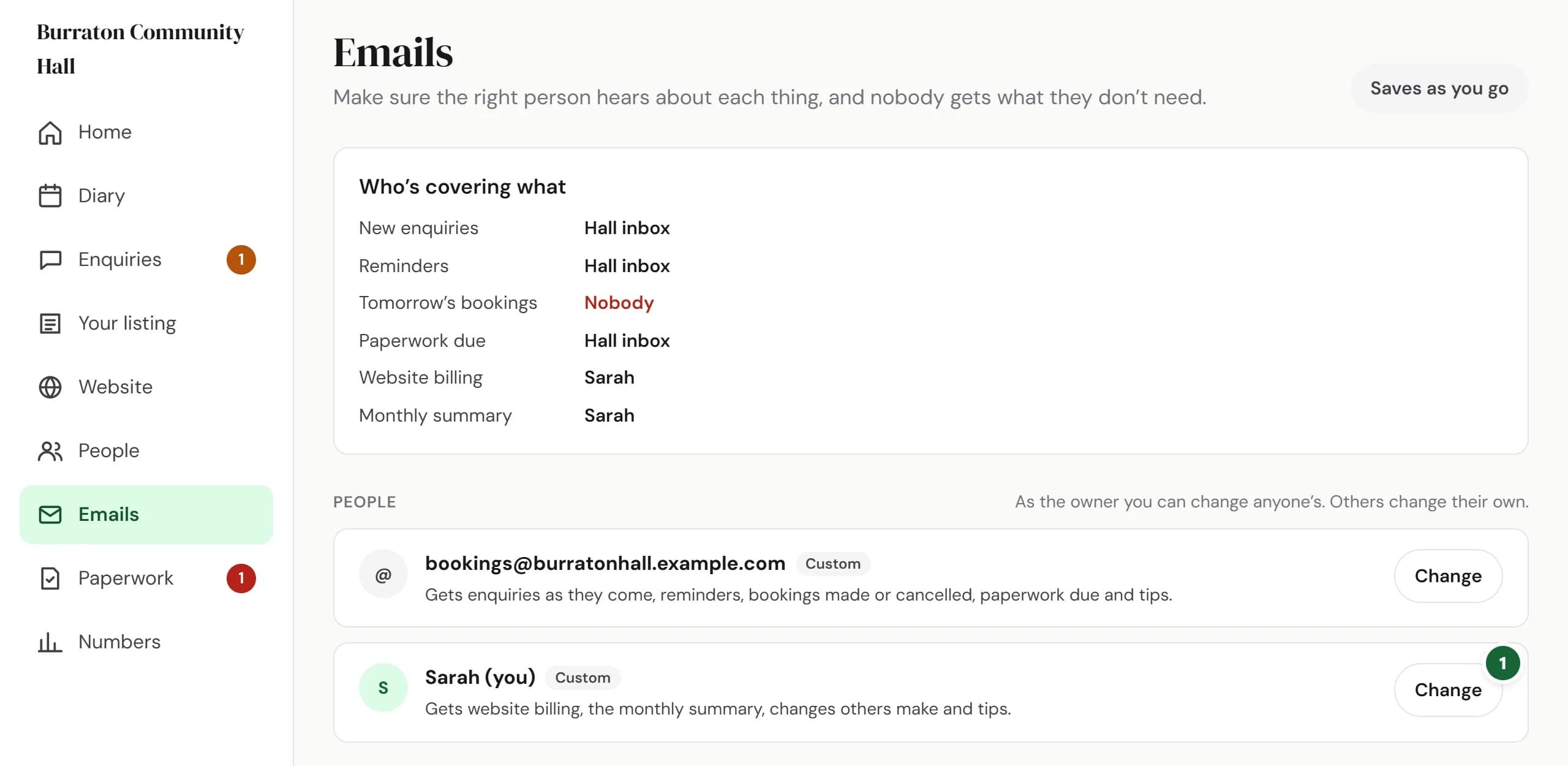
NewChoose who at your hall gets which emails from HallMatchA new Emails page sends enquiries, reminders and tomorrow’s bookings to the right person, and hands them over while someone is away.

How to use it

  1. Step 1: Open Emails in your dashboard. Who’s covering what shows who gets each kind of email. Press Change on someone’s card.
  2. Step 2: Under What do they do at the hall?, pick Takes bookings, Looks after money, Opens up or On the committee. Then change any email below it.
  3. Step 3: Going away? Press Set dates and choose who gets their emails until they’re back.

Good to know

  • New enquiries can come As they come or Once a day.
  • The owner can change anyone’s emails. Everyone else changes their own.
  • Somebody always gets new enquiries: the last person getting them can’t switch them off unless your listing is paused.
  • Website billing goes to one person only.
The Emails page: Who's covering what lists who gets new enquiries, reminders and tomorrow's bookings, then a card for the hall inbox and one for each person, with Change marked 1.
Where to find itEmails
Show me
This change on its own page →
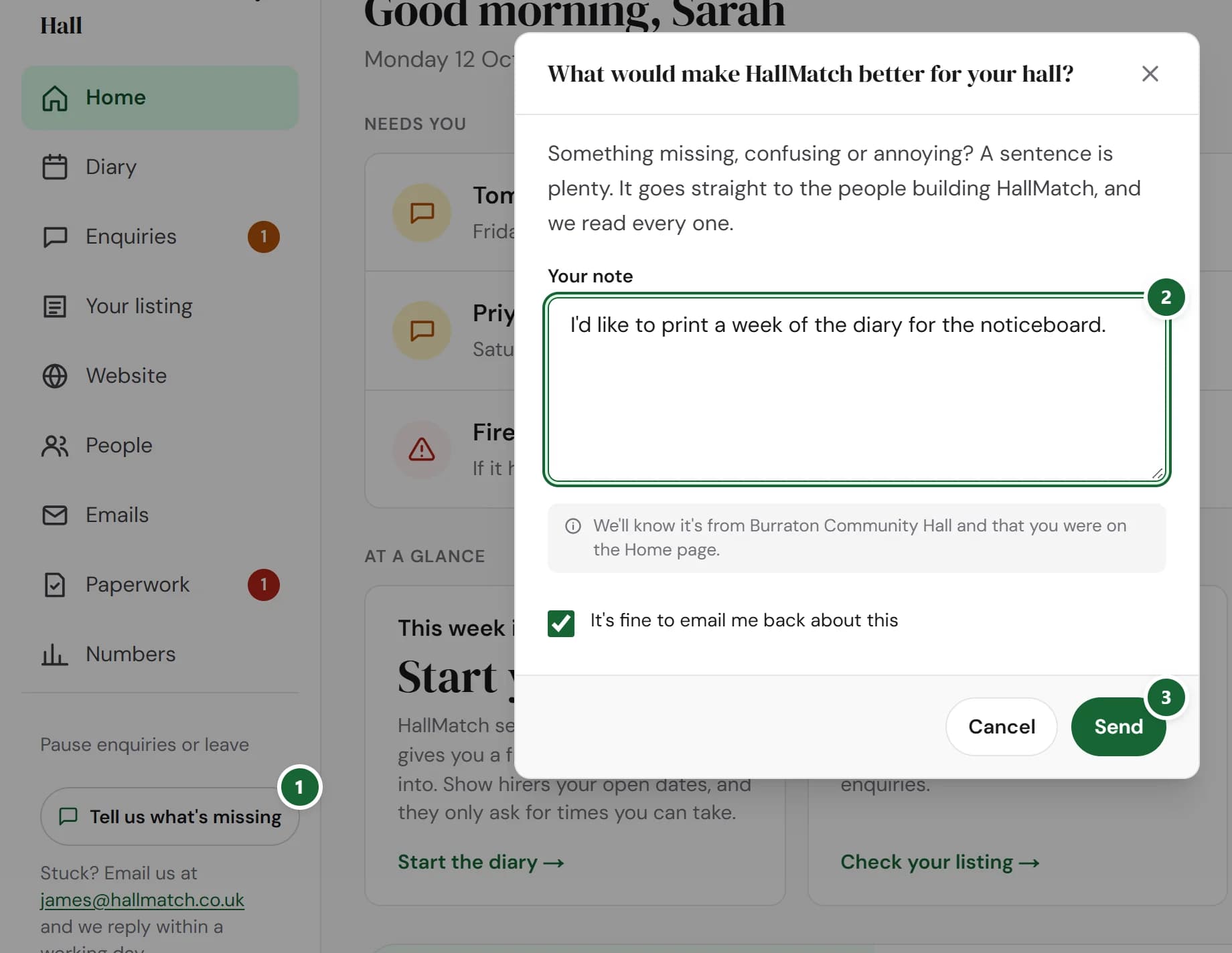
NewTell us what’s missing, from any page of your dashboardSomething missing, confusing or annoying? Write us a sentence from wherever you are, and it goes straight to the people building HallMatch.

How to use it

  1. Step 1: On any page of your dashboard, press Tell us what's missing.
  2. Step 2: Write a sentence in Your note. Leave It's fine to email me back about this ticked if you’re happy for us to ask you about it.
  3. Step 3: Press Send.

Good to know

  • We attach your hall’s name and the page you were on, so you don’t have to explain where.
  • We read every note. If we build something because of it, you’ll see it here on What’s new.
The Tell us what's missing box open over a hall's Home page: the button that opens it (marked 1), a note about printing a week of the diary (marked 2) and Send (marked 3).
Where to find itAny dashboard page, then Tell us what's missing
Show me
This change on its own page →
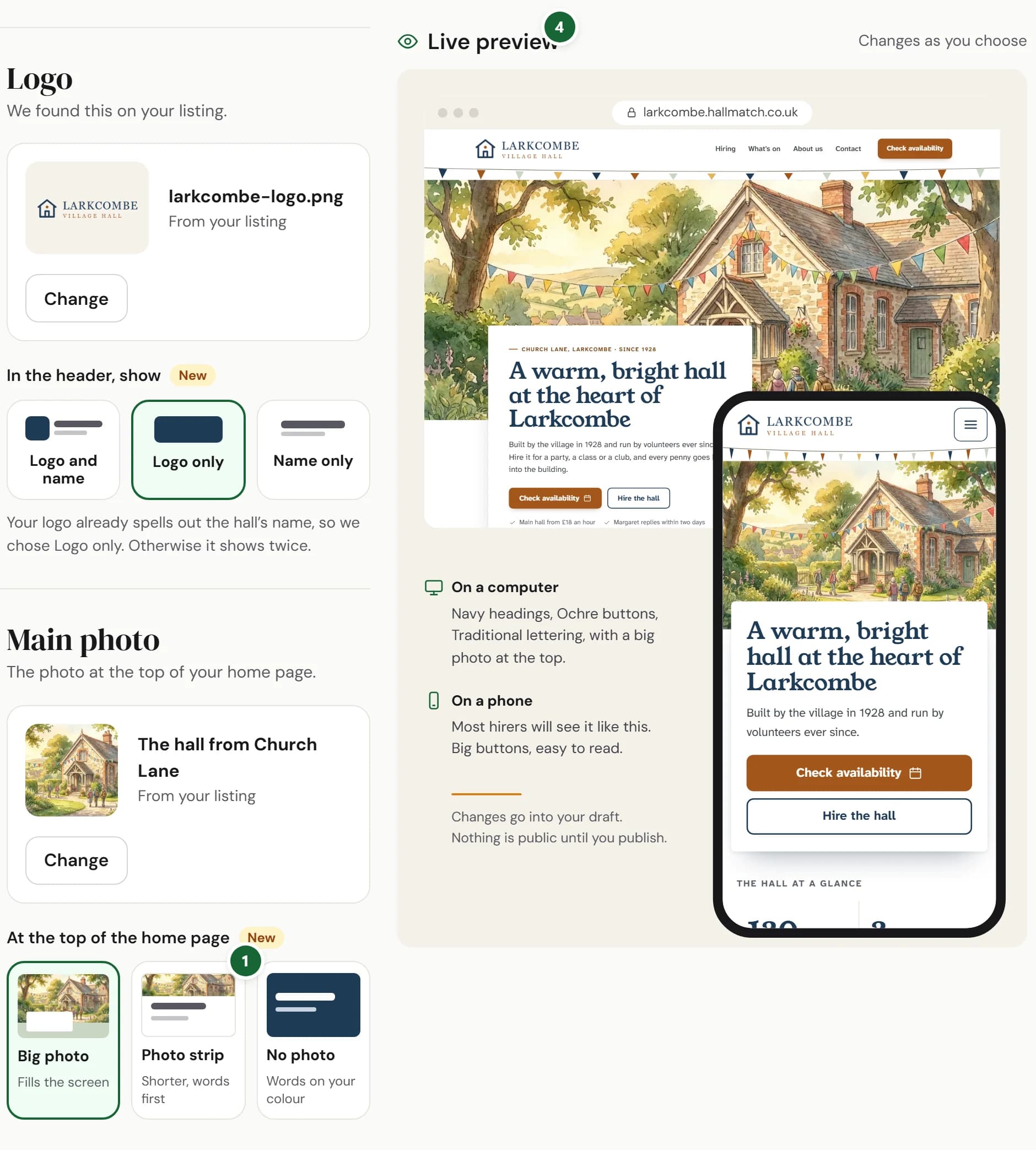
ImprovedMake your website look like your own hall, with more colours, lettering and touchesWebsite, then Look, now offers your logo alone in the header, a photo strip, twelve colours, button colours, Classic lettering and more.

How to use it

  1. Step 1: Under Main photo, choose what goes At the top of the home page: Big photo, Photo strip or No photo.
  2. Step 2: Under Colours, pick a Main colour and a Button colour. If the two sit too close, the page suggests one that stands out.
  3. Step 3: Under Finishing touches, choose Bunting, A simple line or Nothing, the background of every other section, and pinned or tidy cards.
  4. Step 4: Watch the Live preview as you choose. Each choice saves to your draft; press Publish on your website's Overview when you're happy.

Good to know

  • Nothing changes on your website until you publish. If you choose nothing, it looks just as it does now.
  • Every colour and button colour is picked to stay easy to read, on a computer and on a phone.
  • Logo with your hall's name already in it? Under Logo, choose Logo only so the name isn't shown twice.
  • See the new choices on the example halls: St Brannoc's has Classic lettering and a simple line, Thistleby a photo strip and tidy cards.
Website, then Look: the Logo and Main photo groups, with Photo strip (marked 1) under At the top of the home page, beside the Live preview of the hall's home page on a computer and a phone (marked 4).
Where to find itWebsite, then Look
Show me
This change on its own page →