ImprovedFor halls
Make your website look like your own hall, with more colours, lettering and touches
Website, then Look, now offers your logo alone in the header, a photo strip, twelve colours, button colours, Classic lettering and more.
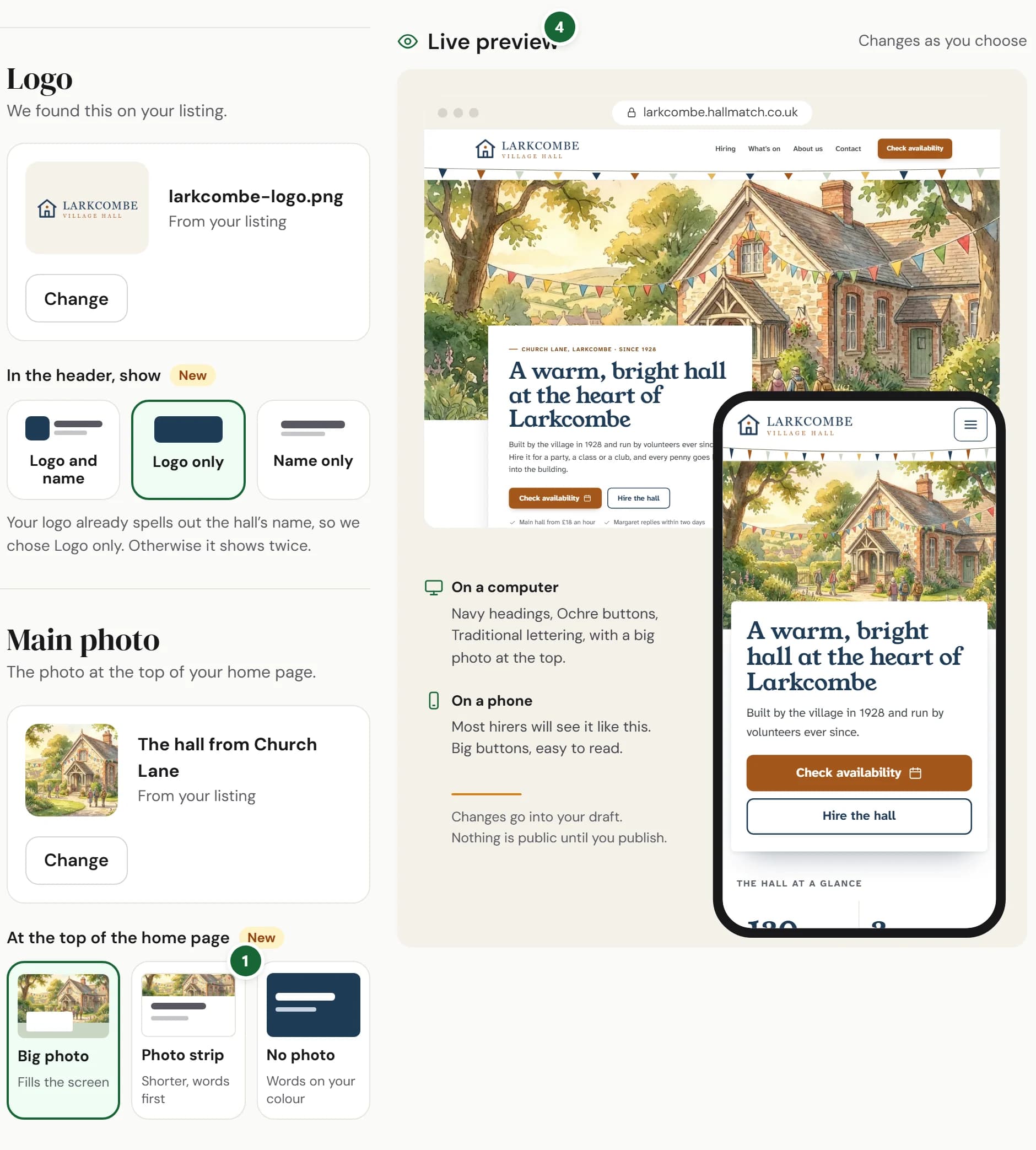

How to use it
- Step 1: Under Main photo, choose what goes At the top of the home page: Big photo, Photo strip or No photo.
- Step 2: Under Colours, pick a Main colour and a Button colour. If the two sit too close, the page suggests one that stands out.
- Step 3: Under Finishing touches, choose Bunting, A simple line or Nothing, the background of every other section, and pinned or tidy cards.
- Step 4: Watch the Live preview as you choose. Each choice saves to your draft; press Publish on your website's Overview when you're happy.
Good to know
- Nothing changes on your website until you publish. If you choose nothing, it looks just as it does now.
- Every colour and button colour is picked to stay easy to read, on a computer and on a phone.
- Logo with your hall's name already in it? Under Logo, choose Logo only so the name isn't shown twice.
- See the new choices on the example halls: St Brannoc's has Classic lettering and a simple line, Thistleby a photo strip and tidy cards.
Where to find itWebsite, then Look
Show me Not on HallMatch yet? What HallMatch does for halls →